¶ Video Tutorial
Loop's Quality Control module tracks the quality of your concrete from the jobsite to the certificate. Every sample taken on a delivery is molded, transported, received at the laboratory and broken — and the calculated strength feeds the statistical analyses and the certificate delivered to the customer. If you are new to the module, this guide shows where to start and the correct order of the steps.
The module works in two stages: the initial setup, done only once in the Quality Control module Administration section, and the day-to-day operation, recurring in the Quality Control CR. Follow the order below and you will be ready to operate.
To use the module, the company needs Quality Control active in its plan and the permission enabled for the users who will operate it.
¶ Part A — Initial Setup
Before recording any inspection, you need to prepare the environment. These steps are performed only once inside the Quality Control module, in the Administration section. Order matters: each record feeds the next one.
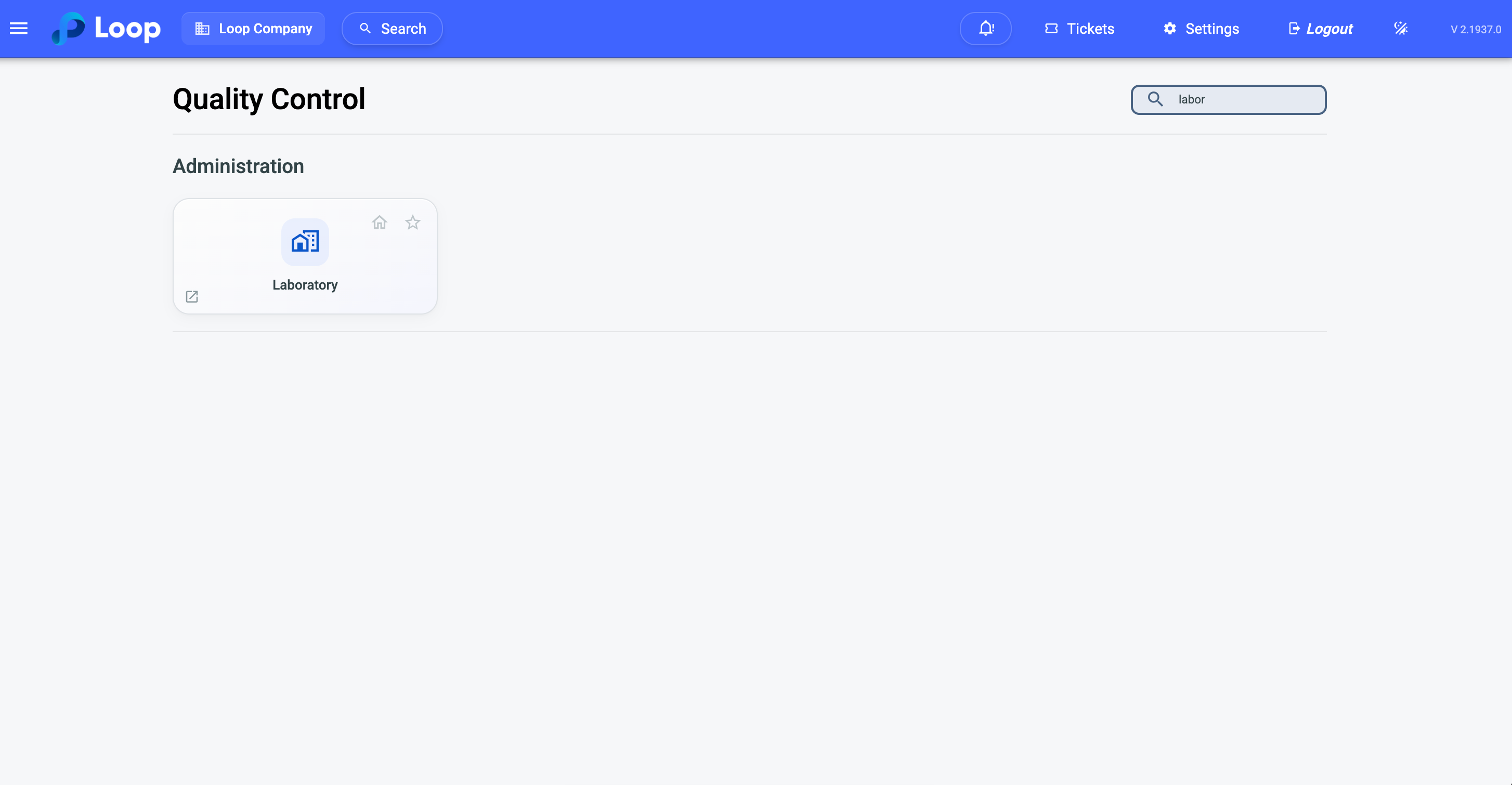
Laboratory
The laboratory is the physical place where samples are received and tested, and it is what defines the units of measure and the rules that apply to the whole operation. In the Quality Control module, go to Administration → Laboratory and enter the internal code, the name, the breaking load unit (Kgf, KN or lbf), the strength unit (Kgf/cm², MPa or psi) and the maximum time to collect the sample. Check Allow manual strength if your laboratory needs to manually adjust the calculated value, and Require scan to collect if the collection must be confirmed by barcode scanning.
The location is set on the map next to the form: search for the address and pick the result, or double-click directly on the map to place the marker.
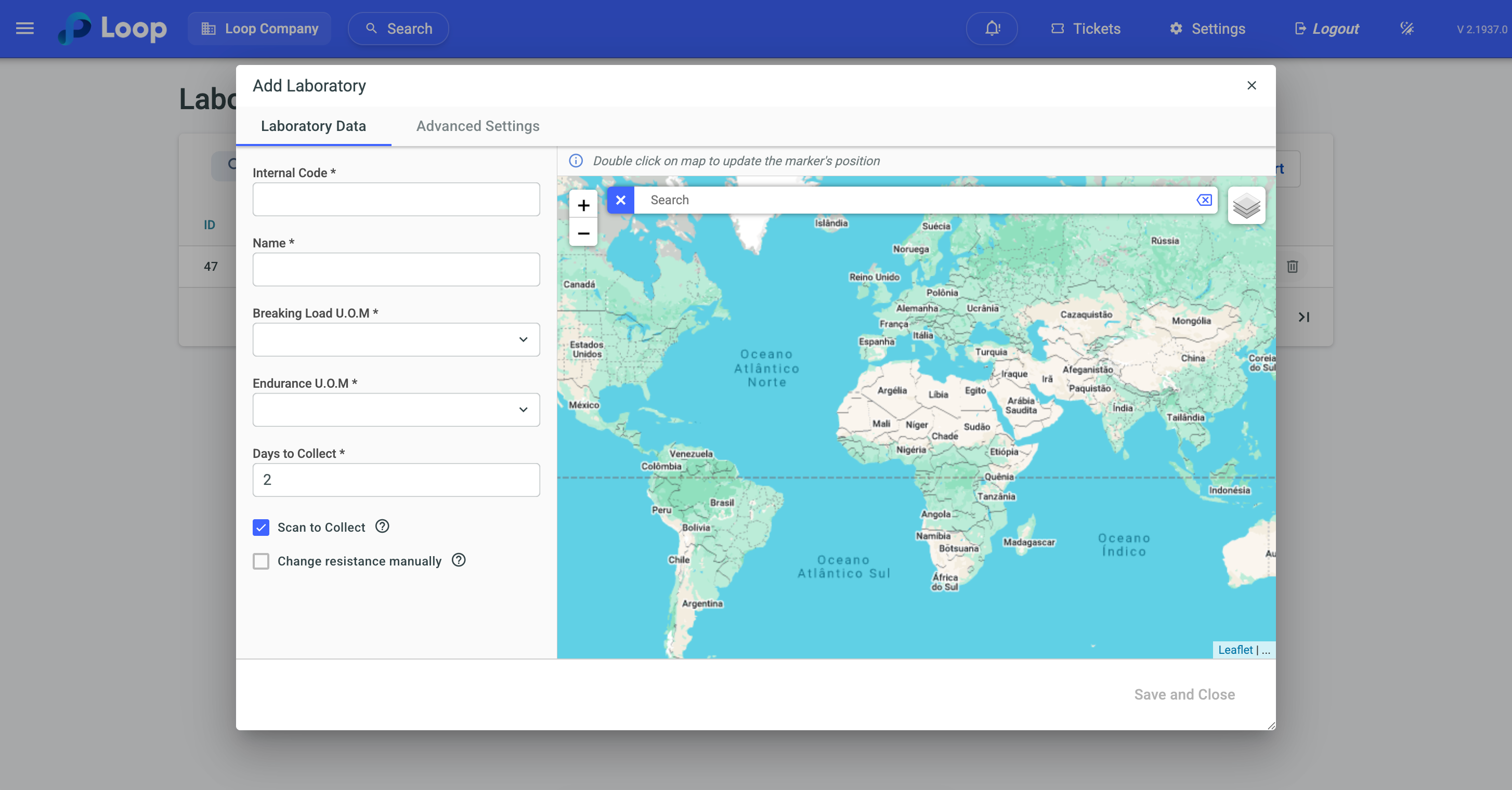
Without the marker placed on the map it is not possible to save the laboratory — there is no field to type latitude and longitude.
On the Advanced settings tab you enable the conversion coefficient (value between 0.80 and 1.00), applied to the test result, and the extra cylinder measurements, which unlock the second and third diameter and height measurement at breaking.
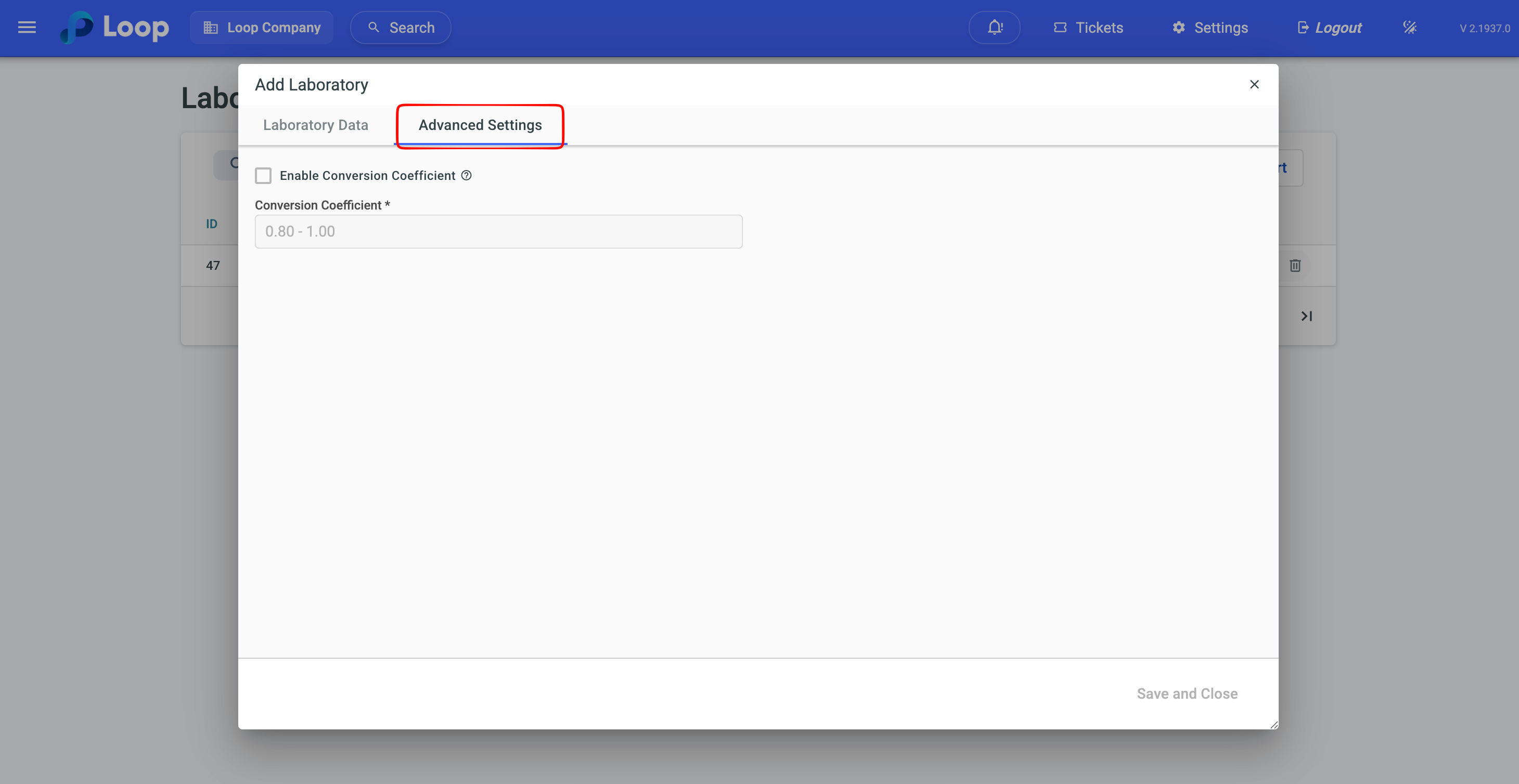
The conversion coefficient is applied only to samples with a diameter less than or equal to 140 mm. Above that the system does not apply the coefficient, by definition.
To learn more, go to: Laboratory
Sample Type
The sample type defines the shape and the measurements of the specimens used by your laboratory. In the Quality Control module, go to Administration → Sample Type and enter the description, the shape (cylinder or cube), the size unit (cm, mm or in) and the dimensions. The chosen shape determines which measurements appear: cylinder asks for diameter and height, cube asks for base 1, base 2 and height.
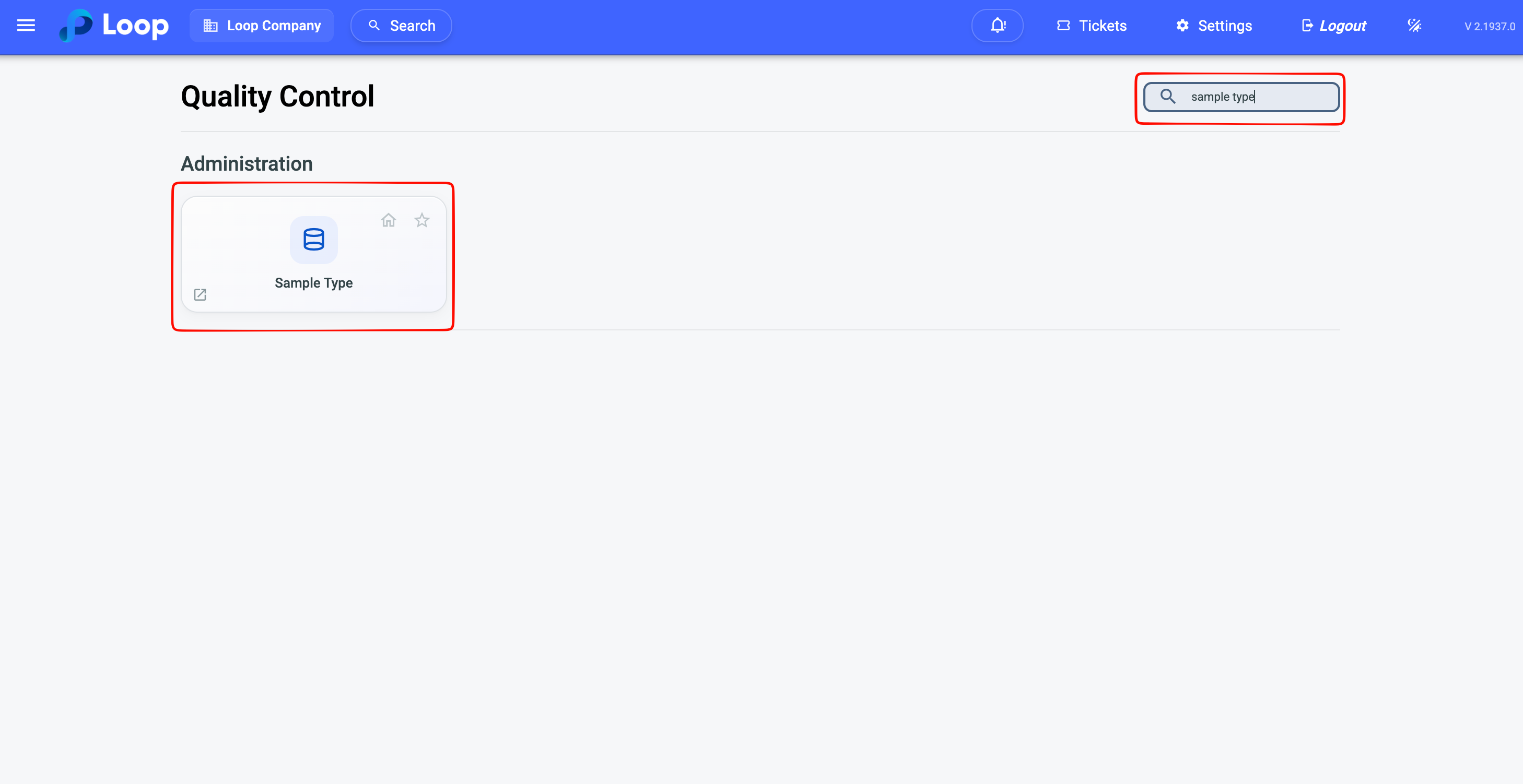
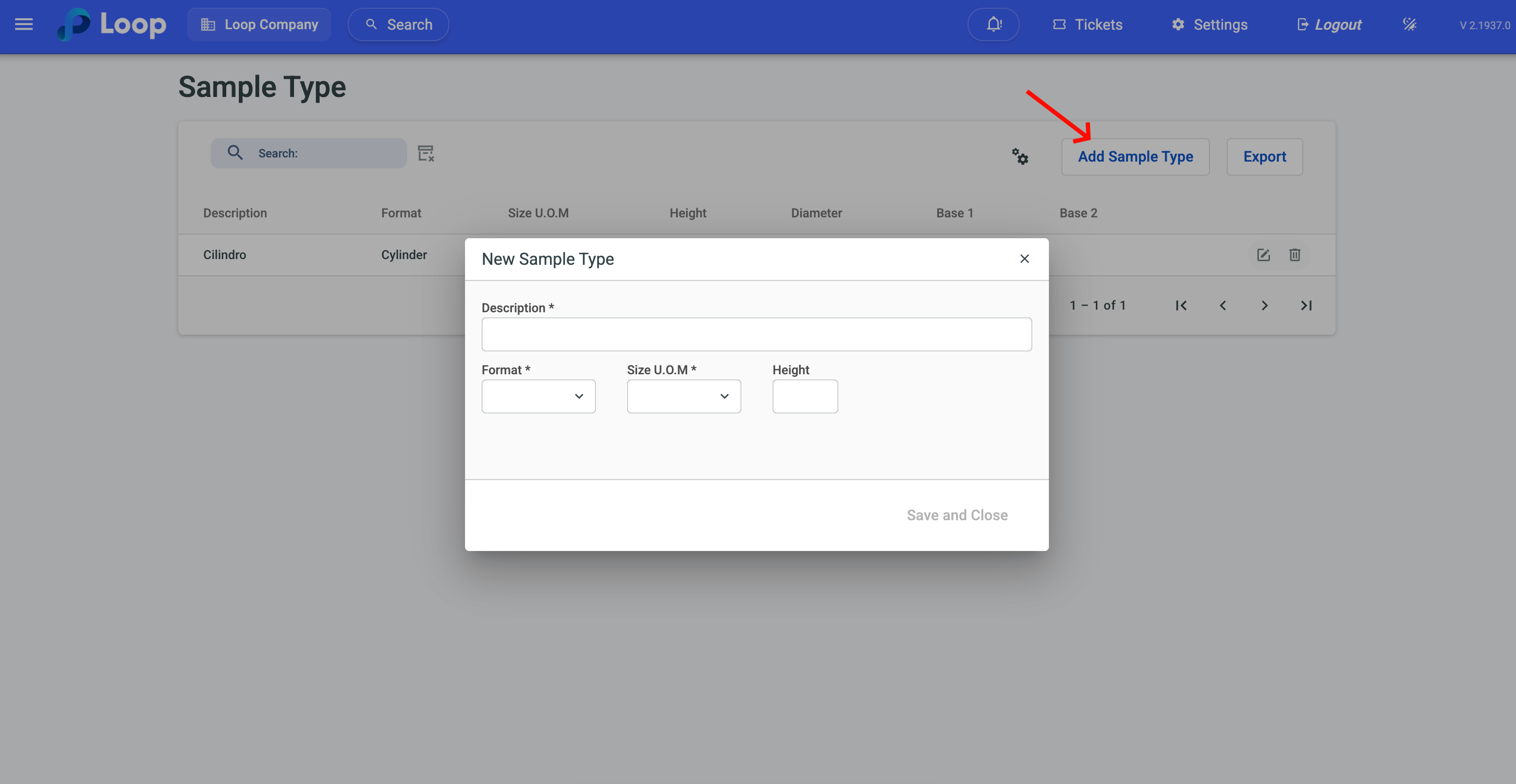
If your company works with both shapes, register one of each now — it makes the next step easier.
To learn more, go to: Sample Type
Equipment
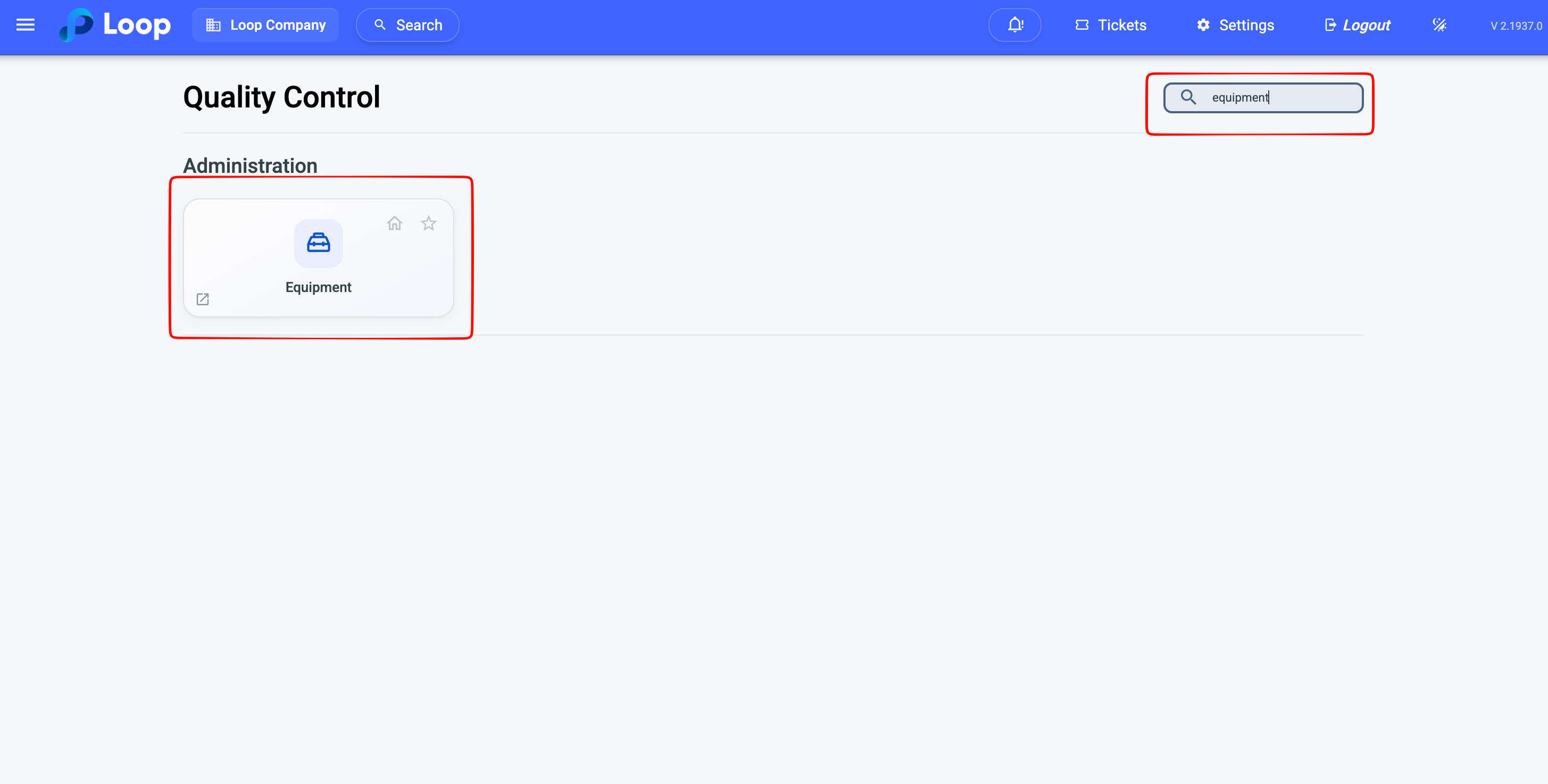
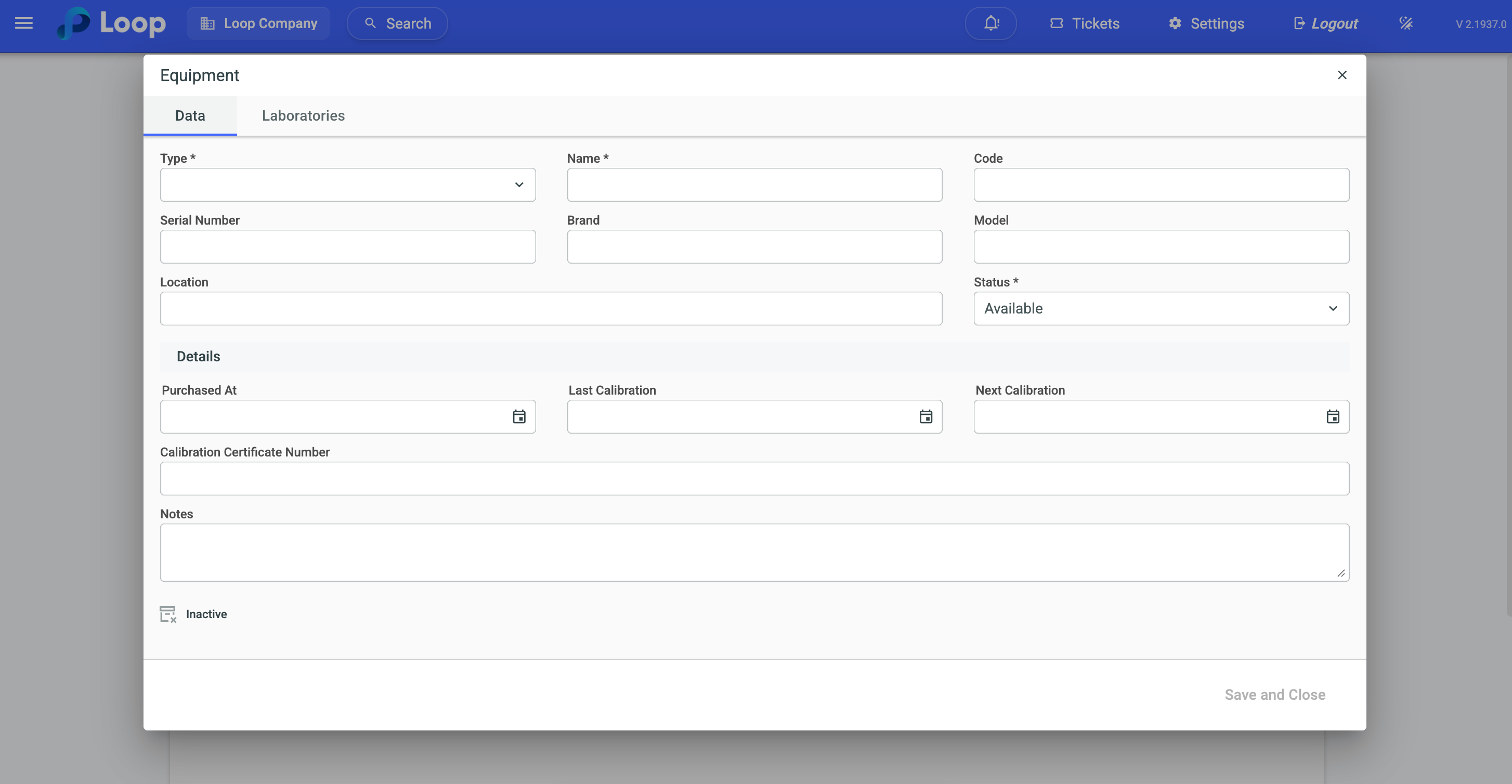
Equipment are the devices used in the tests, with their calibration data. In the Quality Control module, go to Administration → Equipment and register each device with its type, name and status — the remaining fields (serial number, brand, model, certificate and calibration dates) feed the traceability required by standard. By default the equipment applies to all laboratories; uncheck the option to link it to specific laboratories.
| Equipment type | Where it is used |
|---|---|
| Thermometer | Concrete temperature in the inspection |
| Thermo-hygrometer | Ambient temperature and humidity |
| Slump set | Slump measurement |
| Vibrating table / Vibrating needle | Consolidation by vibration |
| Press | Breaking load at the compression test |
| Caliper | Measurement of the sample dimensions |
Calipers and presses have a linear correction factor — the formula in the a*X+b format provided in the calibration certificate, applied automatically to the test result. After saving, the equipment gains a Documents tab to attach the certificate.
Register the equipment before creating the first inspection. With no equipment registered, the equipment fields in the inspection stay empty — which is often mistaken for a system error.
To learn more, go to: Equipment
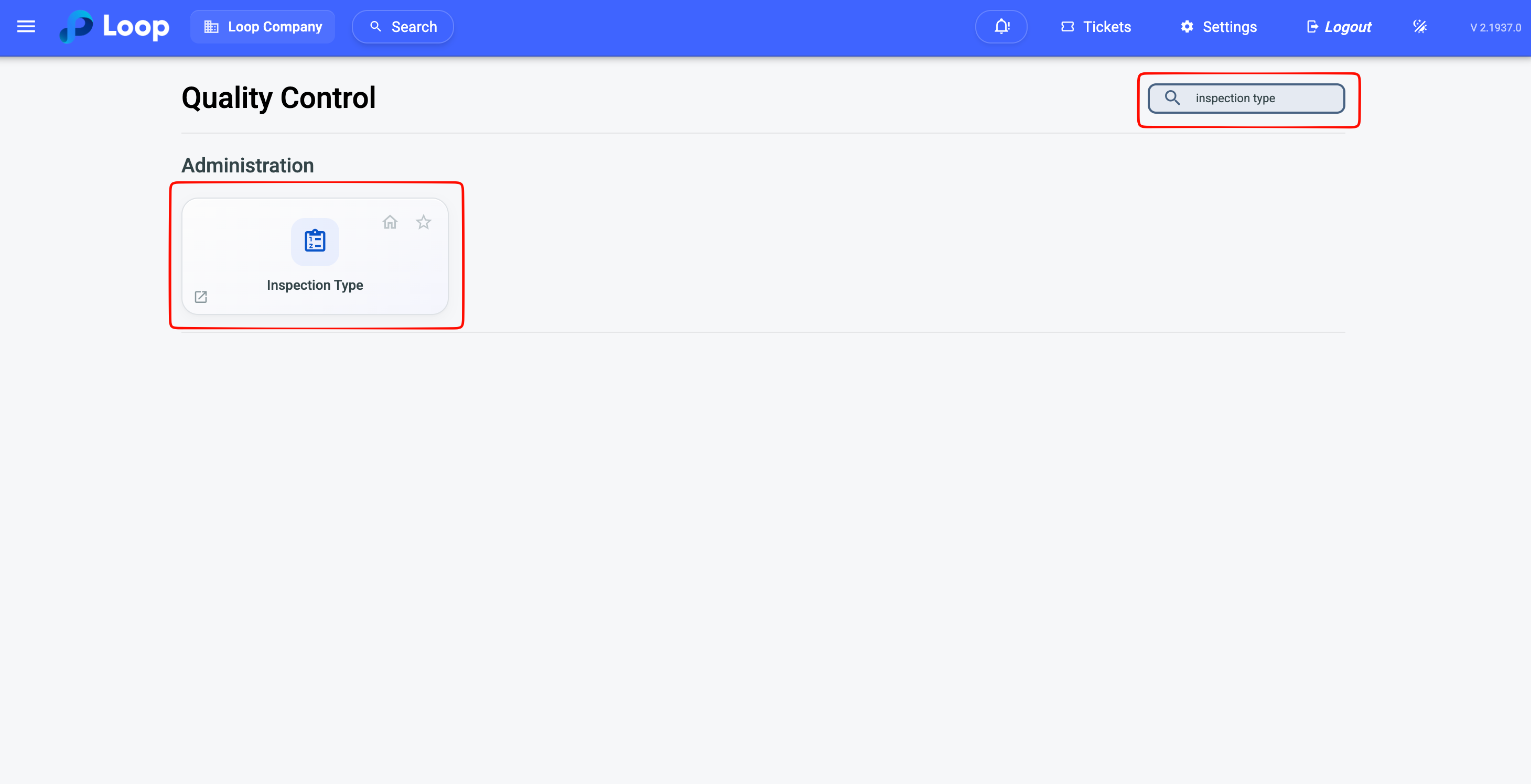
Inspection Type
The inspection type is the rule that defines who collects the sample, where it is collected and which test ages will be performed. In the Quality Control module, go to Administration → Inspection Type and enter the description, the sampling by (driver or lab technician) and the sampling at (plant or jobsite). Link the sample type registered in the previous step and add one row for each test age in days — usually 7 and 28 — checking Third party for those whose test is performed by an external laboratory.
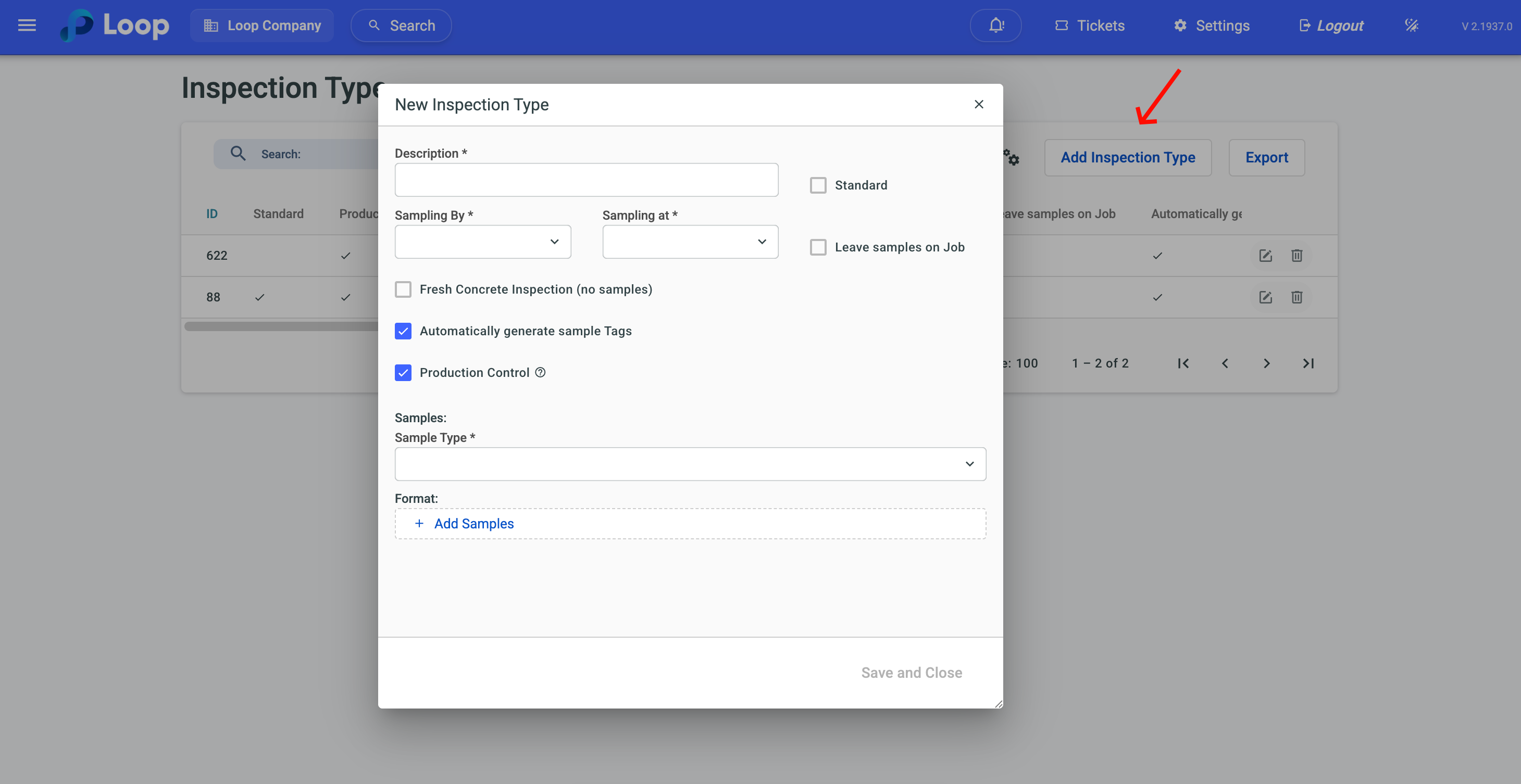
The complementary options change the behavior of the inspection in daily use:
| Option | What it does |
|---|---|
| Default | Leaves the type pre-selected on the quick creation screens |
| Leave at jobsite | The sample stays at the jobsite, generating the "At jobsite" status |
| Fresh concrete inspection | Evaluates only the fresh concrete, with no specimen |
| Create numbered labels | Automatically generates the labels with barcode |
| Production control | Links the inspection to production control |
When you check Fresh concrete inspection, the system hides the whole samples and test ages section — this inspection type records only the fresh concrete measurements, with no specimen molding.
At least one test age is required when the inspection is not a fresh concrete inspection.
To learn more, go to: Inspection Type
Inspection Rule by Plant
The rule by plant defines the default laboratory and inspection type for each plant, and allows scheduling automatic inspections by produced volume. In the Quality Control module, go to Administration → Inspection by Plant, select the plant and fill in the Default tab with the laboratory and the inspection type. On the Statistical inspection tab, enable the rule, choose the inspection type and enter the volume between inspections — for example, one inspection every 40 m³ produced.
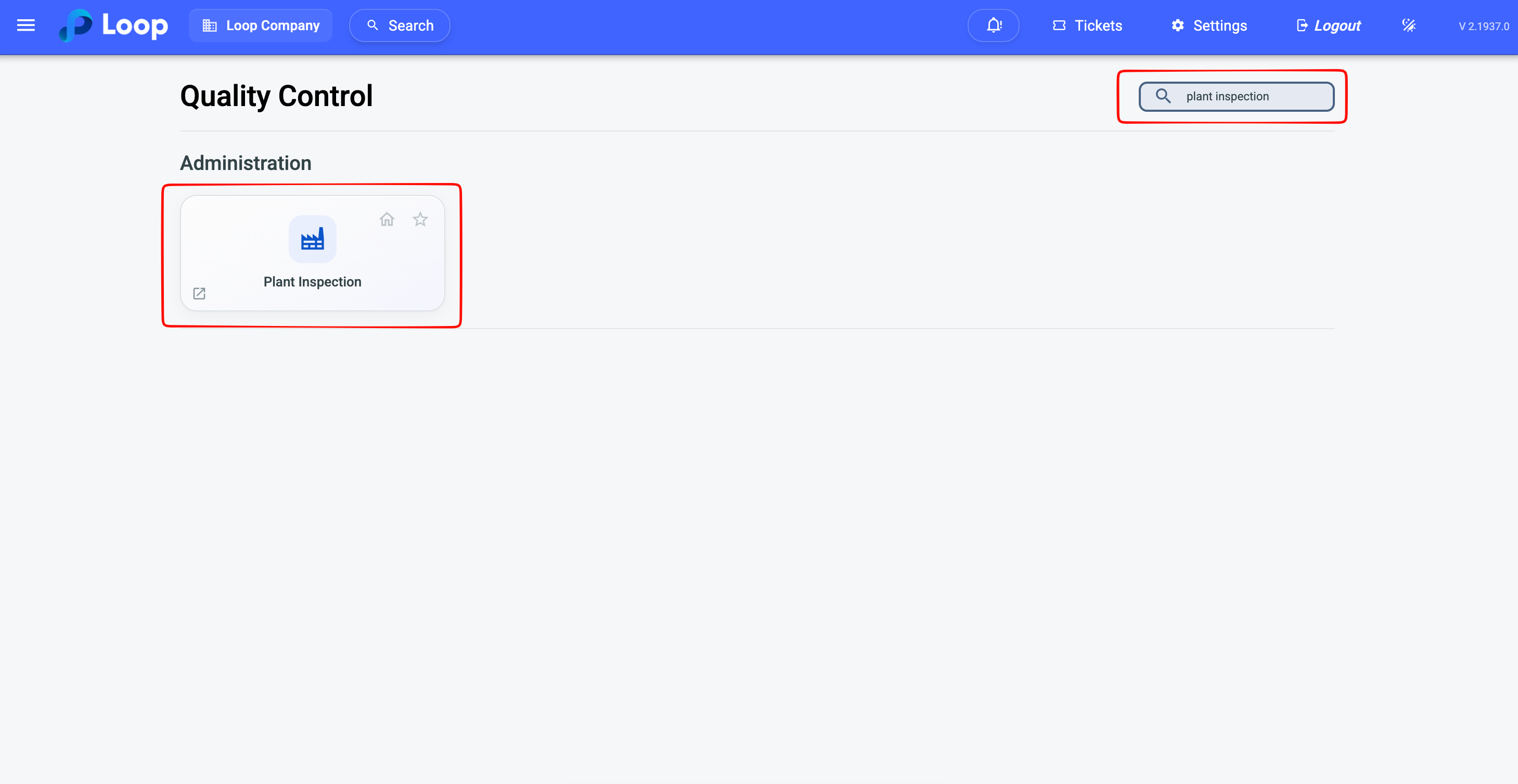
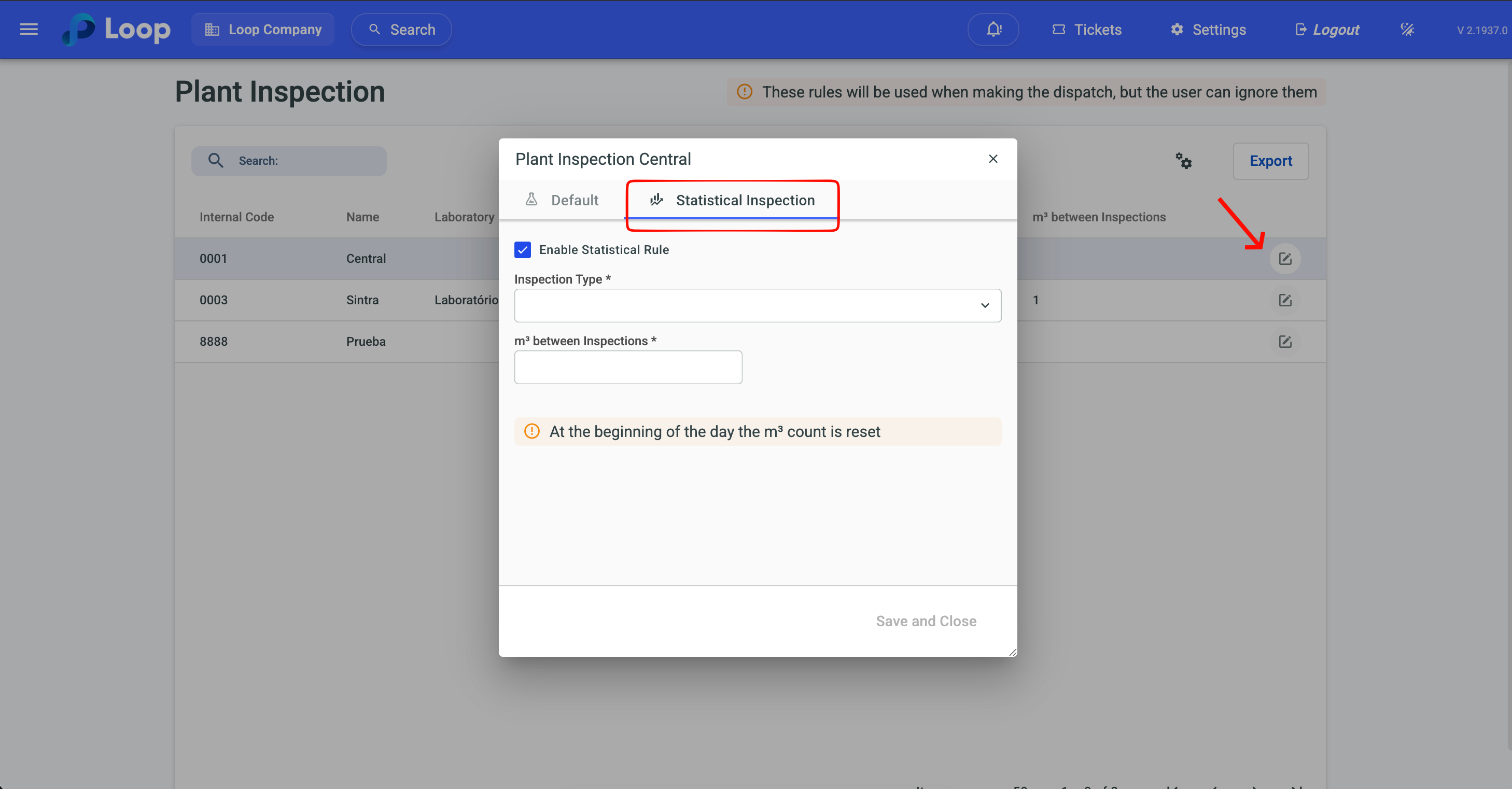
The volume field in m³ is only enabled after choosing the statistical inspection type. Fill it in that order.
The rule is defined per plant. There is, today, no different inspection rule per customer.
Supplier
The supplier is the origin of the aggregates evaluated in the raw material tests. The Supplier item that appears in the Administration menu is the same screen from the Inventory module, made available here for convenience — if your suppliers are already registered in Inventory, there is nothing to do in this step.
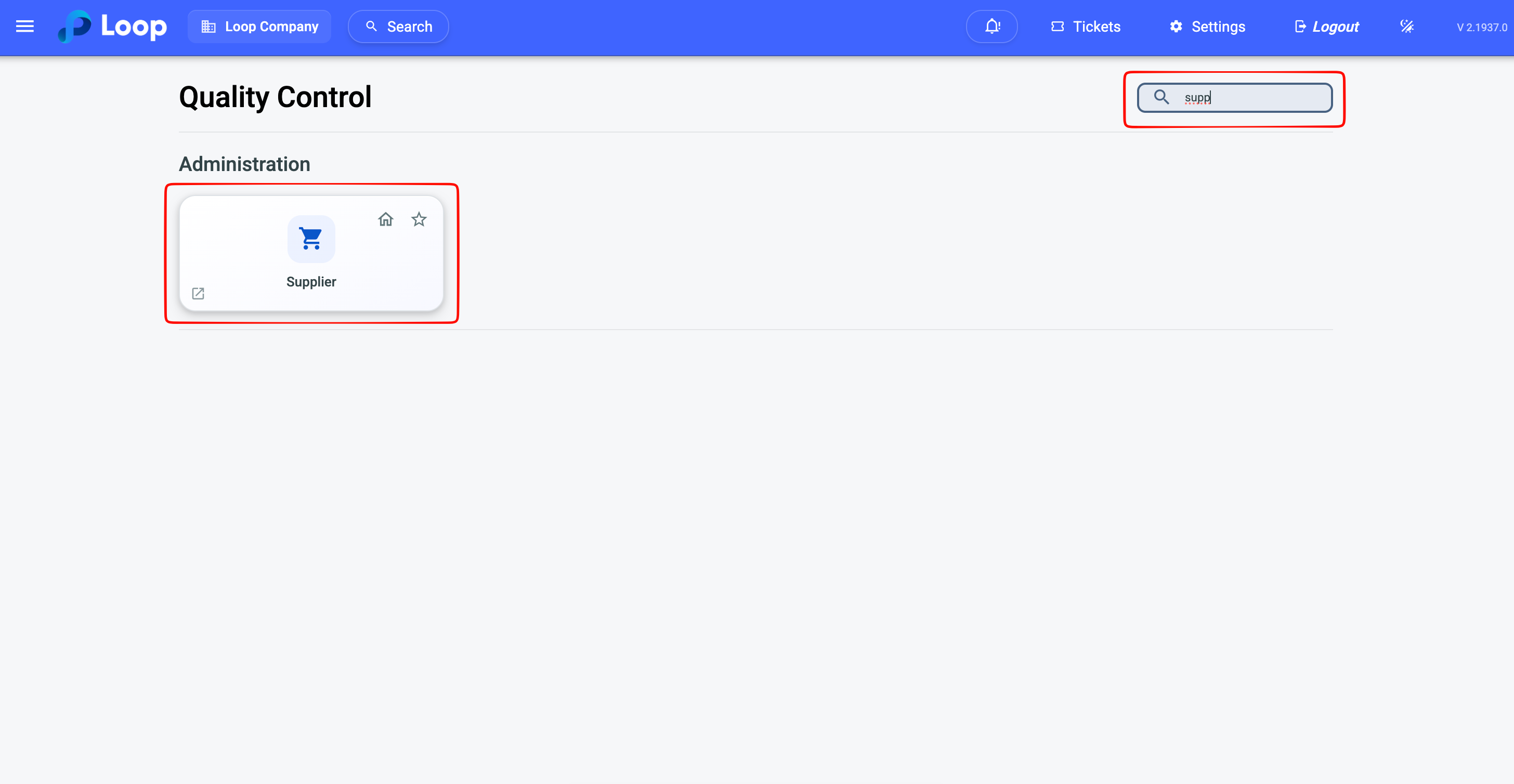
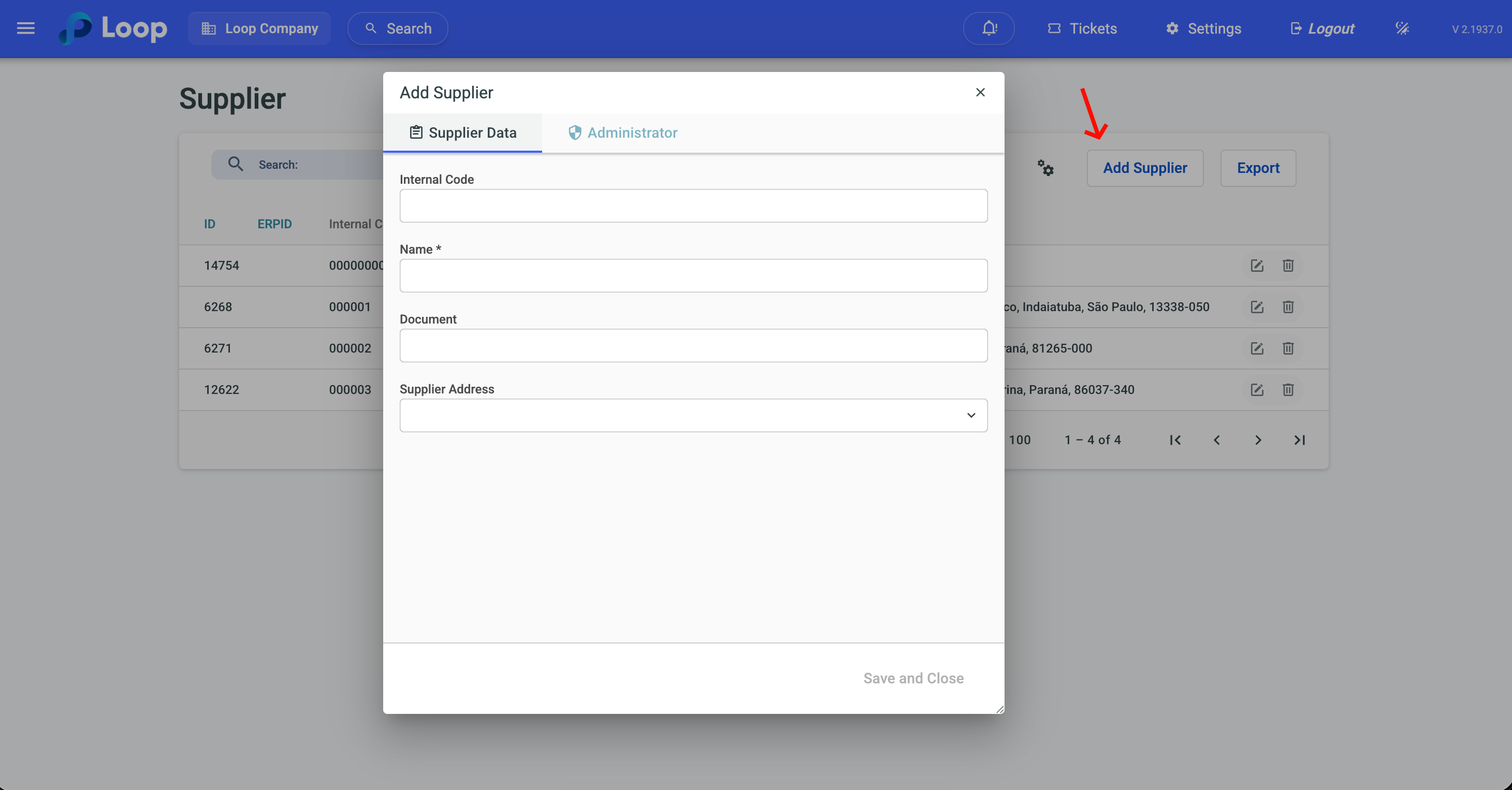
To learn more, go to: Suppliers
¶ Part B — Day-to-Day Operation
With the setup done, the operations below are performed on a recurring basis in the Quality Control CR. The cycle of each sample always follows the same sequence: create the inspection, mold, collect, receive at the laboratory and break.
| Status | What it means |
|---|---|
| Not molded | The sample has not been molded yet |
| At jobsite | The sample stayed at the jobsite |
| In route | Molded, in transit to the laboratory |
| At laboratory | Received, awaiting the breaking test |
| Tested | Breaking recorded and strength calculated |
Inspection — recording the collection of a sample
The inspection is the record of the concrete evaluation: the fresh material measurements and the samples that will be broken. Go to Inspection → Add Inspection and choose between Delivery Inspection, linked to a delivery recorded in the system, or Standalone Inspection, with no link — used in mix design studies and tests that do not correspond to a delivery.
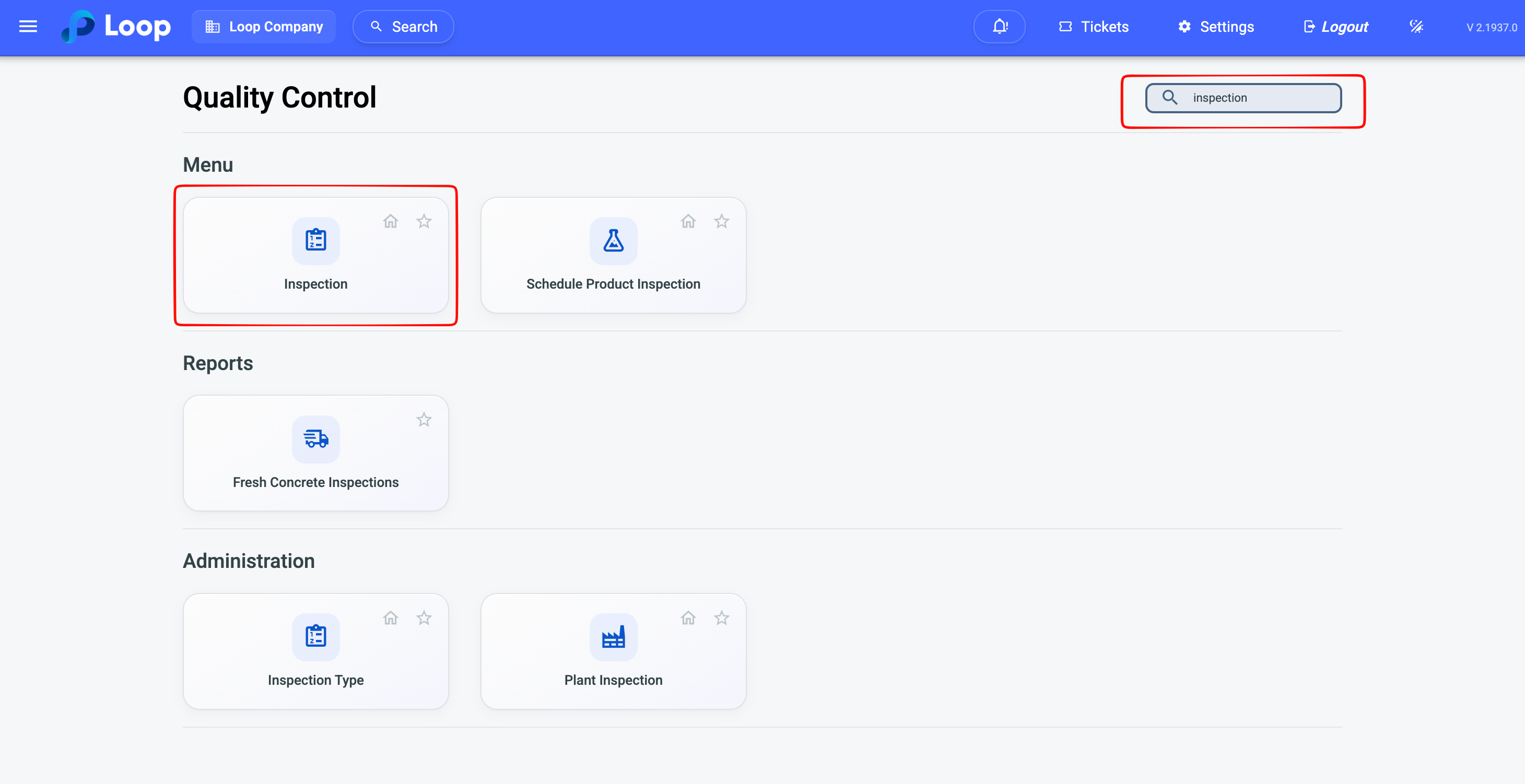
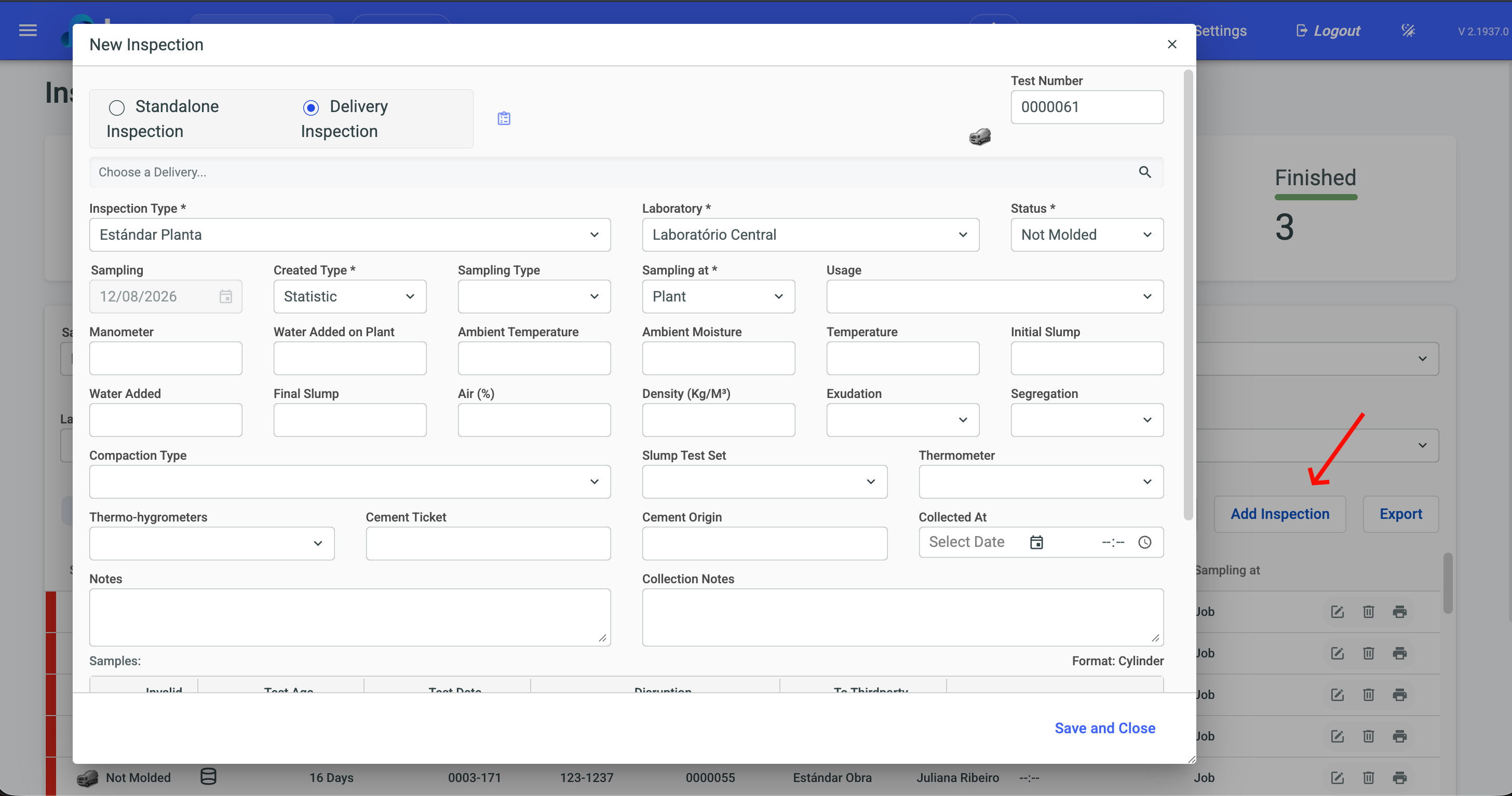
In the delivery inspection, click the magnifying glass icon to find the delivery. When you select it, the system automatically fills in the product, the mix design, the driver, the delivery note and the sampling date, and shows a card with the full delivery data.
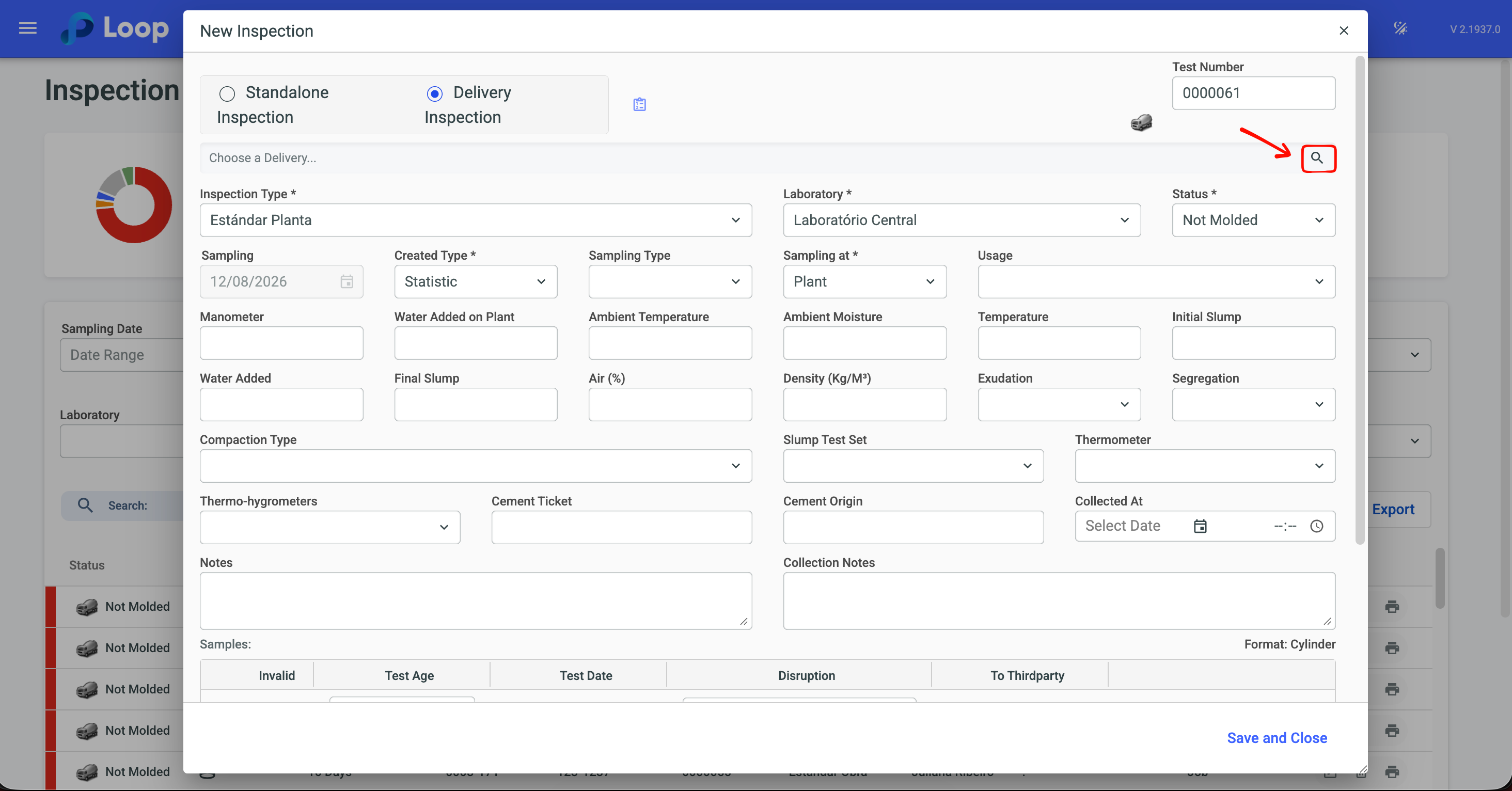
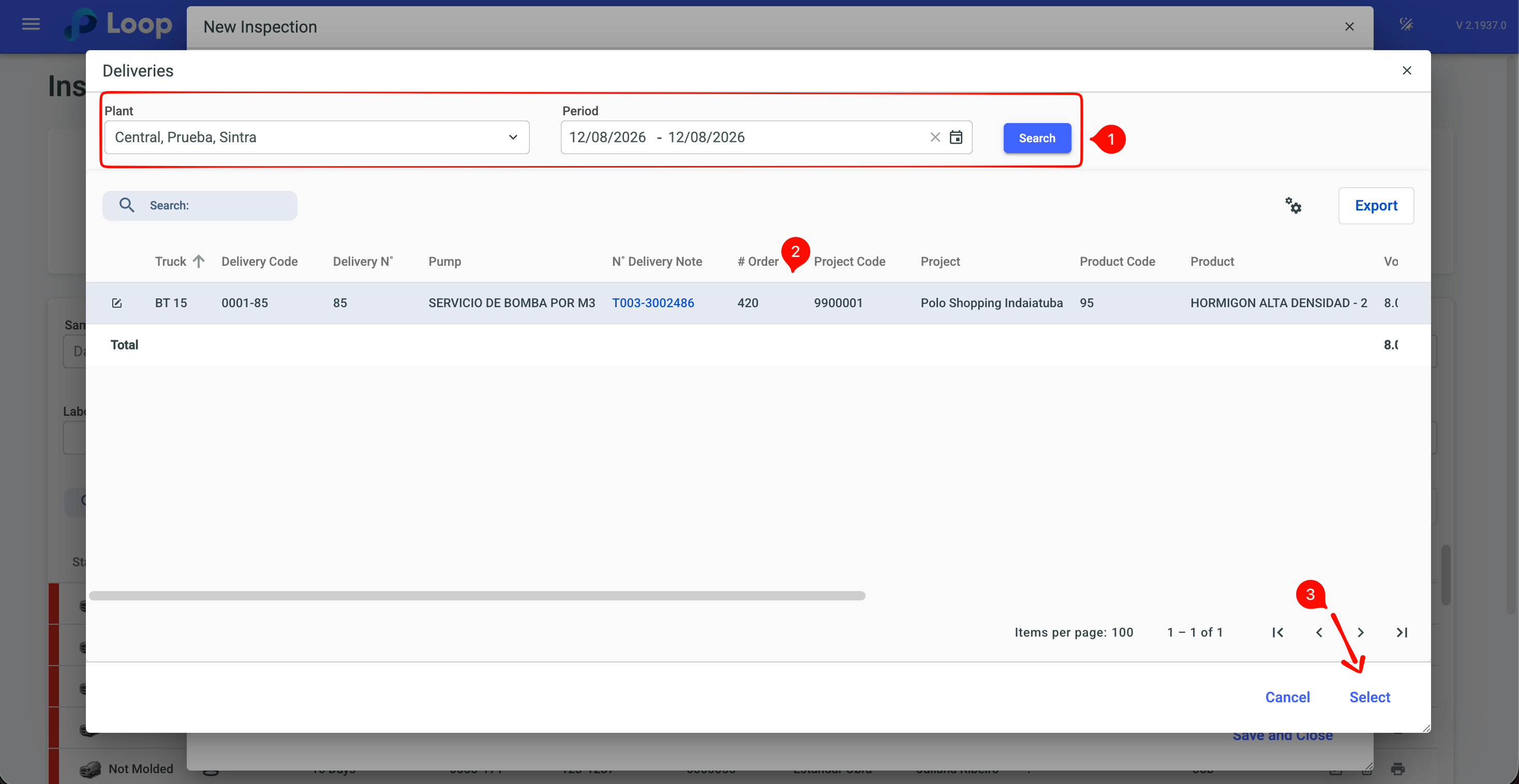
Enter the inspection type, the laboratory, the situation, the creation type and the sampling location — these fields are required. Then record the fresh concrete measurements: concrete and ambient temperature, humidity, initial and final slump, entrained air content, density, bleeding and segregation. Also select the equipment used and the consolidation type, which can be vibration (entering the equipment) or rodding (entering blows per layer and number of layers).
The choice between delivery and standalone inspection cannot be changed after saving.
The Added water and Water added at plant fields are read-only: the value comes from the delivery record, entered at dispatch, and is stored on the delivery — not on the inspection.
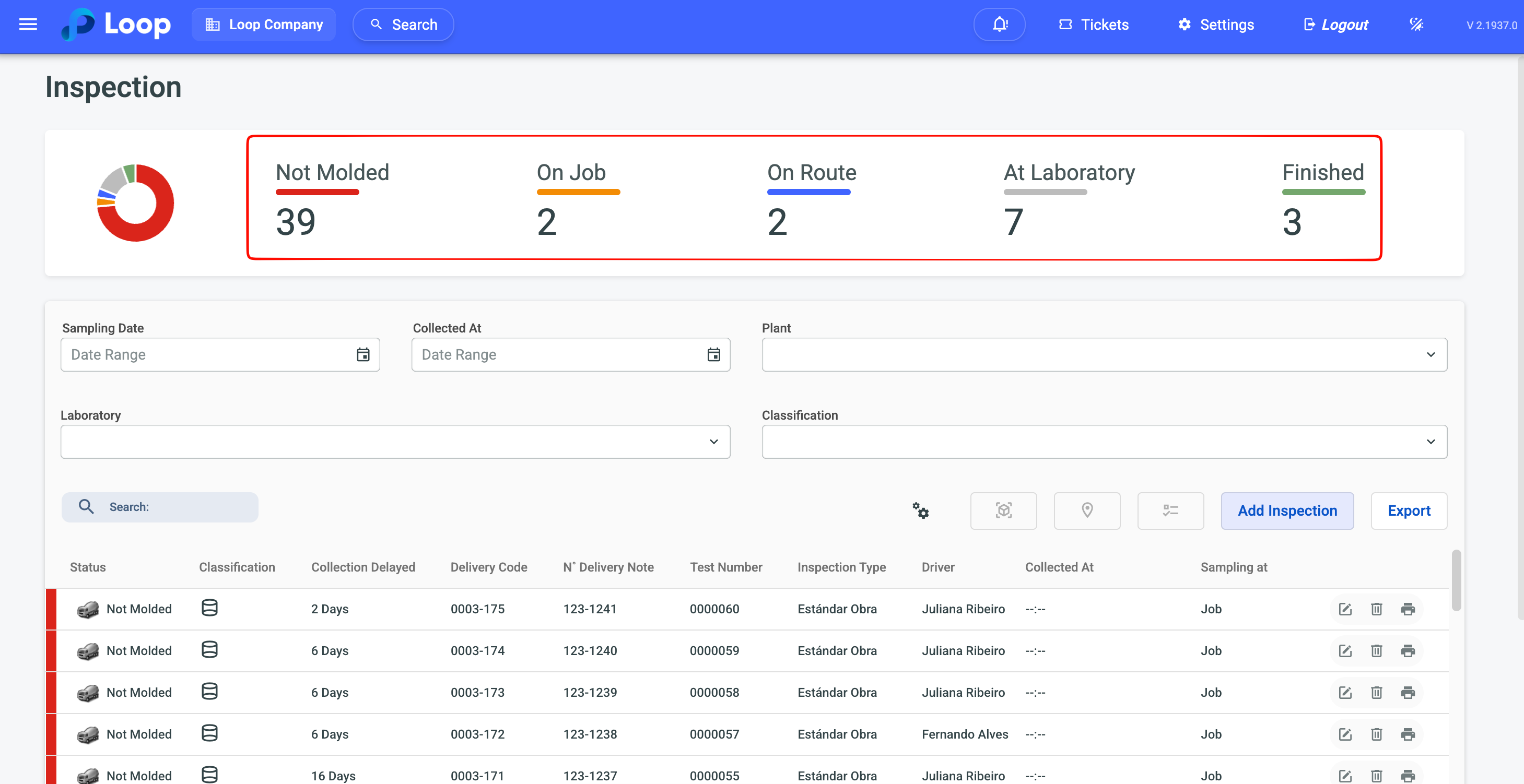
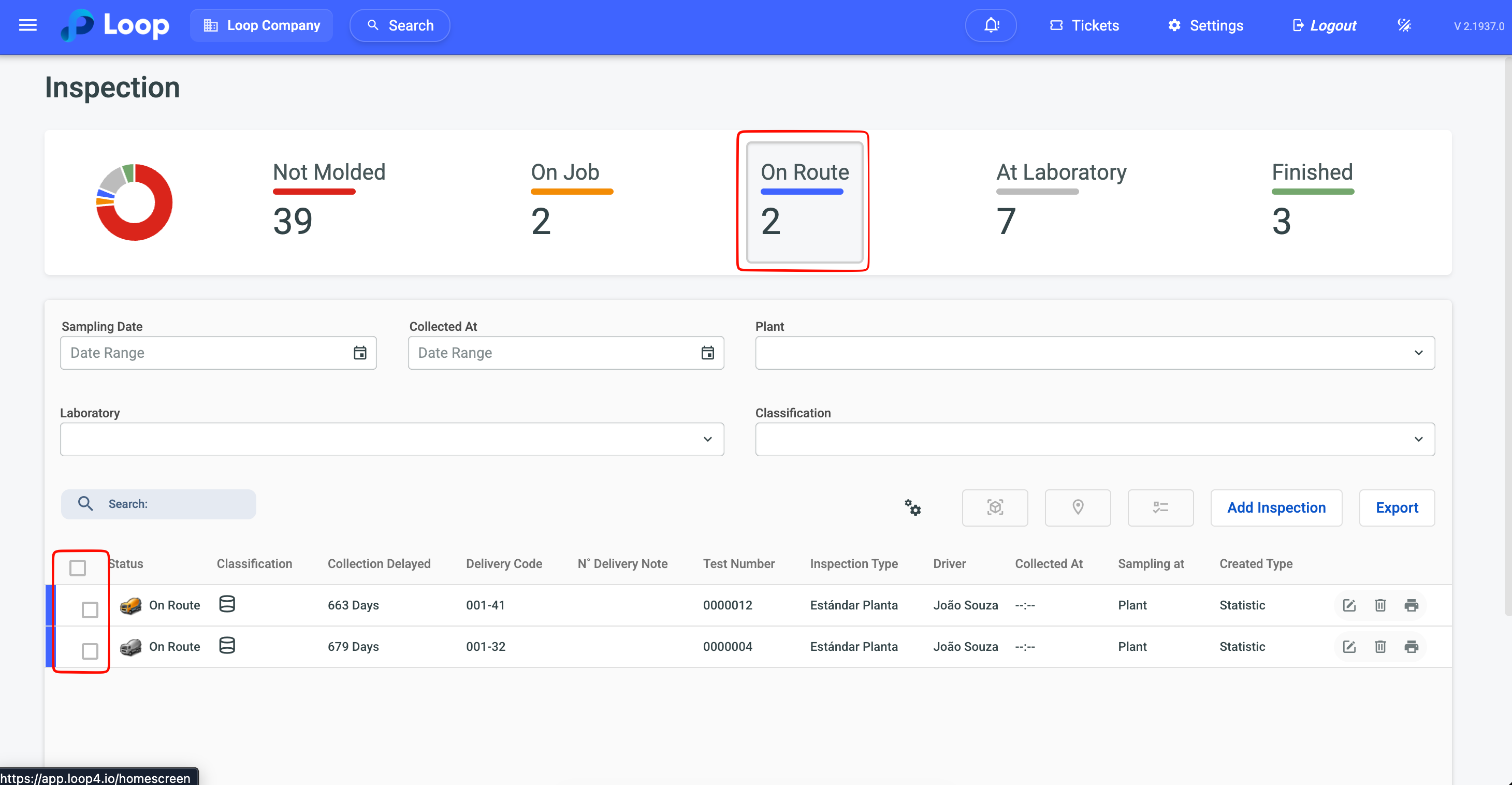
On the inspections screen, the status panel at the top shows the number of inspections in each status. Click a card to filter the list — it is the most used shortcut in daily work. With the list filtered, select the inspections and use the bulk action buttons to mold, collect (entering the date and time) or receive the selected samples.
The checkboxes only appear when the list is filtered by a status that allows the action. If you are not seeing the checkboxes, click the corresponding status card first.
To learn more, go to: Inspection
Break Samples — recording the compression test
This is the screen the lab technician opens every day. Go to Break Samples, enter the test date and, if you want to narrow it down, the plant, the laboratory and the age. Click Search to load the samples for the period.
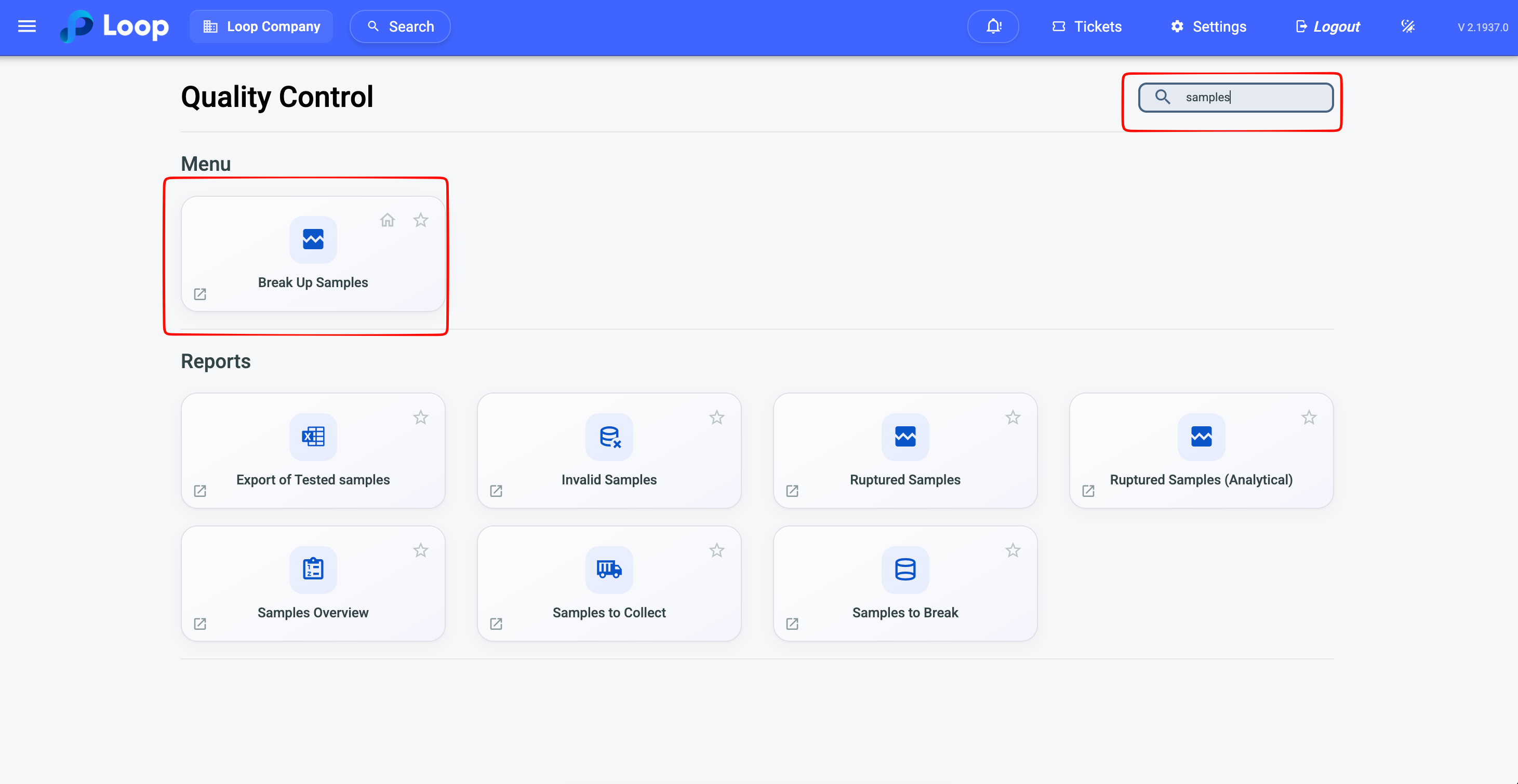
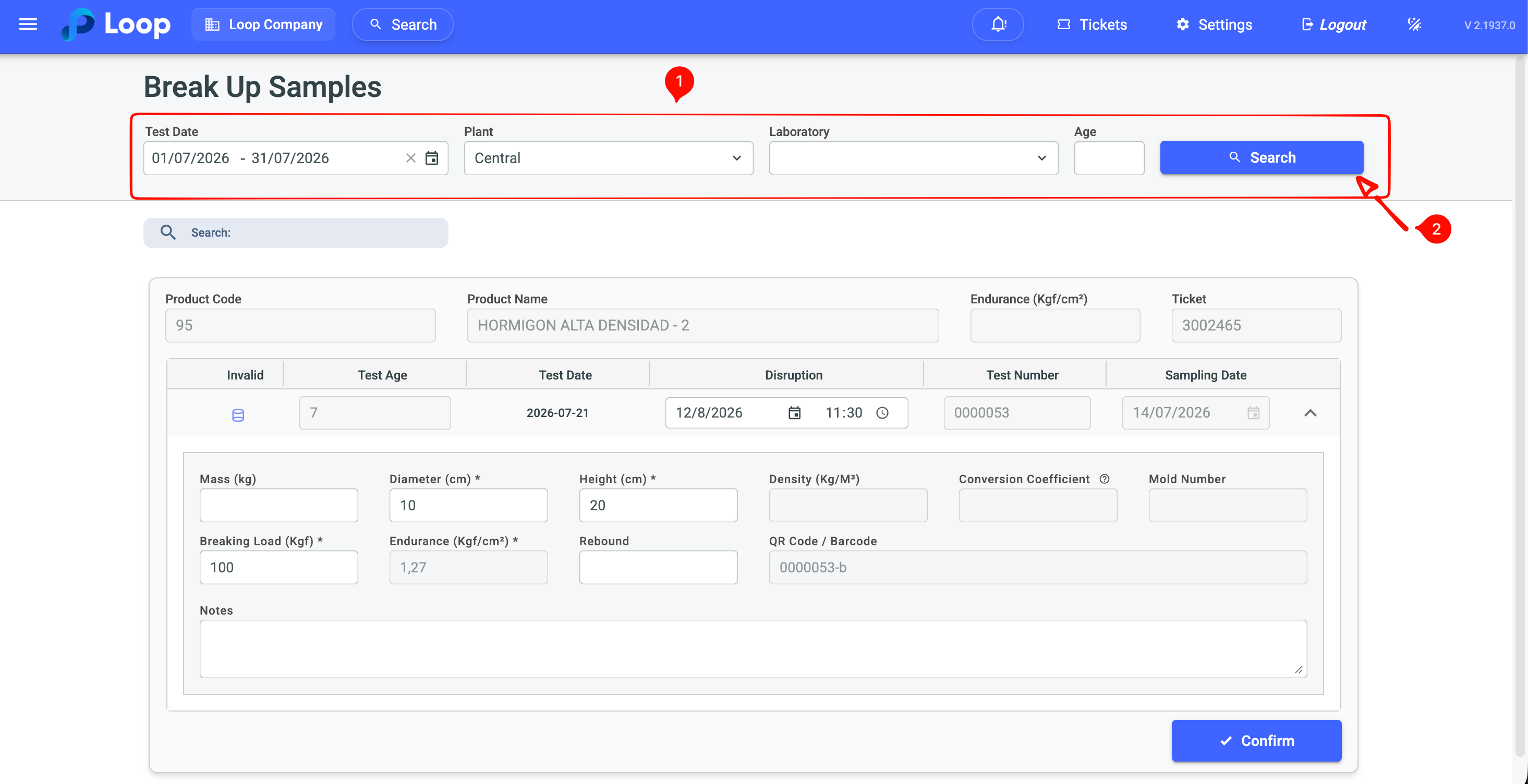
Each sample appears as a card. Enter the mass, the measured dimensions — diameter for cylindrical samples, bases for cubic ones — the height and the breaking load recorded on the press. The area, the density, the height/diameter ratio, the conversion coefficient and the strength are calculated by the system and shown in gray, updating as you fill in the fields.
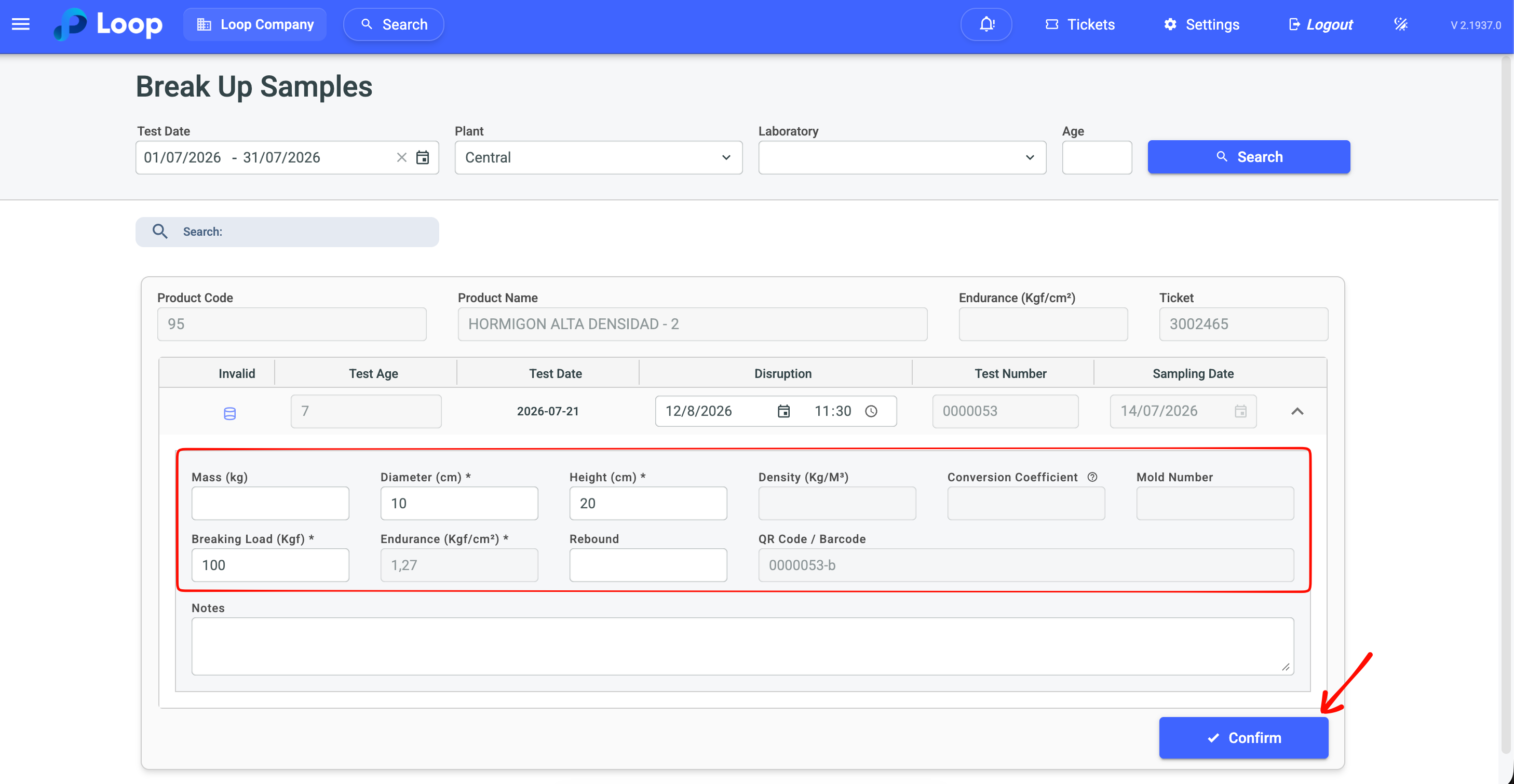
If the laboratory has extra cylinder measurements enabled, the card also includes the second and third measurement, the press counter, the caliper and press selection with their correction factors, and the fracture type — a visual selector with six images (cone, split cone, columnar, diagonal, top/bottom edge and edge tip) to classify the observed fracture.
Check Invalid on the samples that must be discarded from the statistical calculation. After confirming all the data, click Confirm to record the break.
The screen only loads data after clicking Search, and the button requires the test date to be filled in.
Every change is recorded for auditing: manual strength adjustments store the user, original value, adjusted value and date; redone tests keep the history of the previous versions.
To learn more, go to: Break Samples
Analysis — tracking the results
With the samples broken, the analysis screens consolidate the results into historical series and statistical indicators. The Dashboard shows the percentage of sampled volume, the percentage of tested dispatches and the invalid samples by plant and period.
| Analysis screen | What it is for |
|---|---|
| FCK | Statistical characteristic strength, in daily and monthly view |
| Slump | Slump history, comparing product x inspection and initial x final |
| Temperature | Concrete and ambient temperature history |
| Entrained air | Air content history |
| Ambient humidity | Humidity history at the moment of collection |
| Cumulative sum (Cusum) | Statistical process control |
| Sample validation by age | Check of the samples by test age |
| Analysis by driver | Inspections by driver, to track collection deviations |
All the screens share the same filters: plant, laboratory, product, product family, period and the option to include standalone inspections.
Quality Certificate — issuing the report of the delivered concrete
The certificate is the document delivered to the customer attesting that the concrete reached the specified strength. It can only be issued after the inspection samples have been broken, because it is the test result that feeds the report.
Go to Quality Control → Quality Certificate and choose the tab matching the origin of the inspection: Delivery Inspection, for samples linked to a delivery, or Standalone Inspection, for standalone inspections. Within each one, choose between By Sample, to issue one certificate per specimen, or By Delivery, consolidating all the samples of the same delivery in a single document.
Use the filters to find what you want to certify — customer, contract, plant, load point, product, purpose, sampling location and date, breaking period, FCK and test age — and check Consider invalid samples or Include Deliveries without Inspection if you need to widen the search. Click Search to load the results.
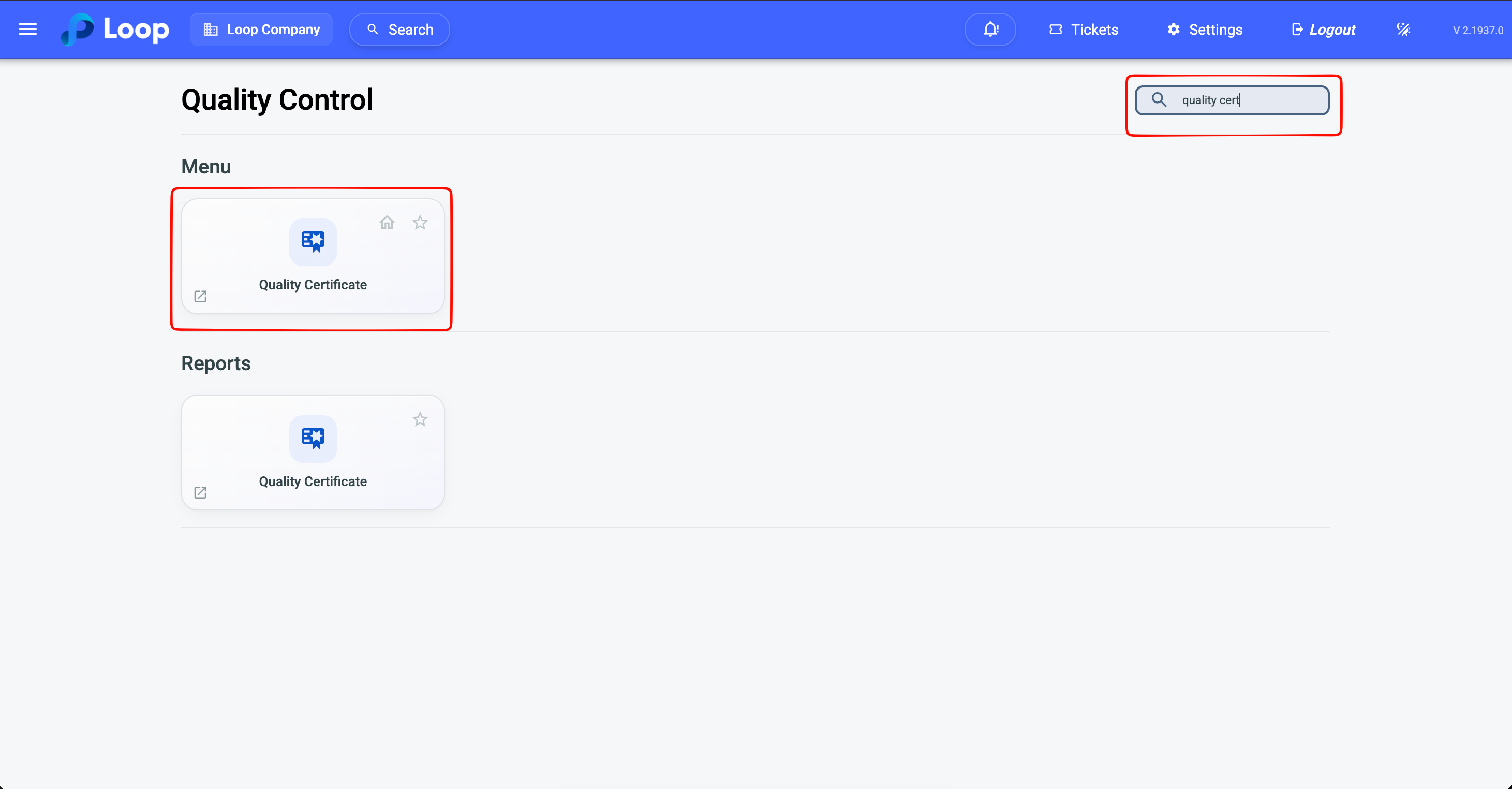
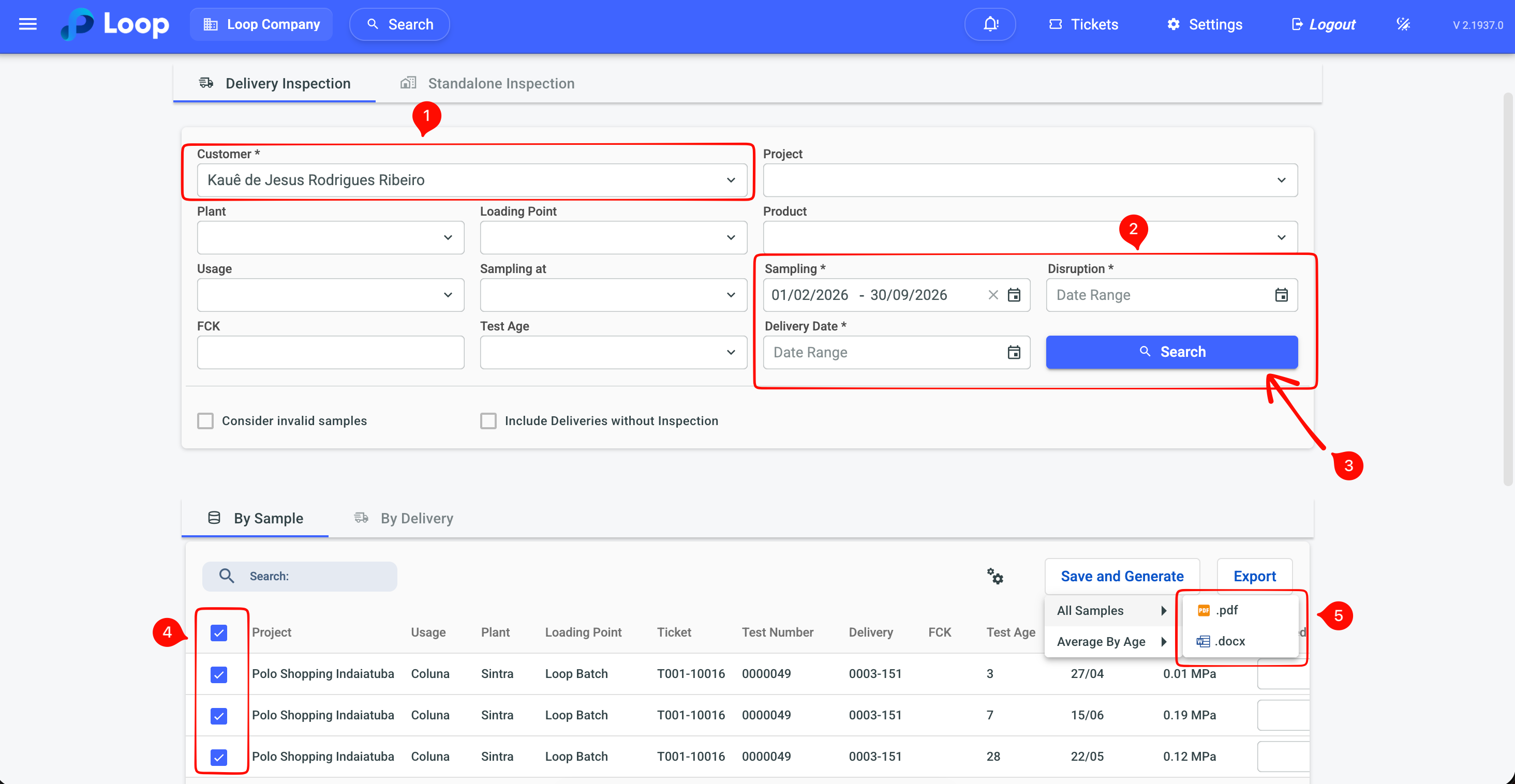
In the By Sample view, select the desired rows with the checkbox and click Save and Generate to issue the certificates in bulk — there is no need to generate them one by one. In the By Delivery view, the certificate is generated individually by the certificate icon on each row. In both, the result is available for PDF download, and the list can be exported to Excel by the Export button.
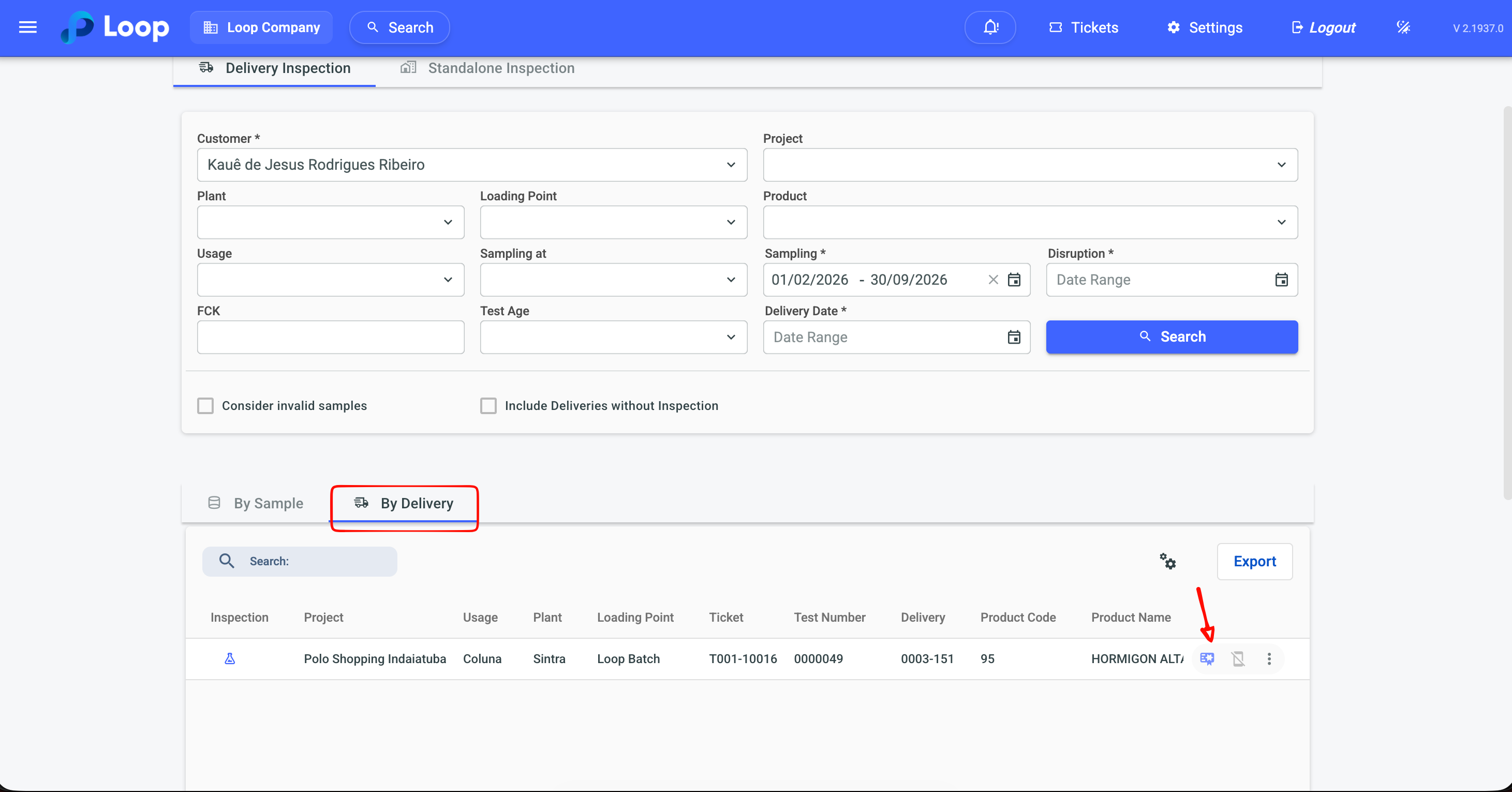
The certificate can only be generated after the inspection samples have been broken — if the row does not allow generating, check first whether the test has already been recorded in Break Samples.
To reissue a certificate already delivered to the customer, use the generate certificate from history option: it reproduces the document with the original data of the first issuance, even if the inspection has been edited afterwards. That is what guarantees the second copy is identical to the first.
¶ Automatic certificate configuration
Before the first issuance, define the approval criteria in the Automatic certificate configuration button (settings icon, in the top right corner of the Quality Certificate screen — it applies to both tabs, Delivery inspection and Standalone inspection).
"Automatic" here refers to the generation of the certificate itself. With the Project configured for automatic generation and following the criteria defined on this screen, when the samples are broken at the specified ages and reach the defined percentages, the certificate is generated automatically and made available in the Customer App, where the customer can view and download the document.
This way, there is no need for a user to log in, generate the certificate and then send it or enable access for the customer.

In the Project record, check Automatically Enable Project Quality Certificates in the Customer App so this automatic generation applies to the project's deliveries.
Configure:
- Minimum FCK percentage by age — add one row per test age (e.g. 7 and 28 days) with the minimum percentage of the specified strength the sample must reach. Check consider all inspection ages to apply the rule to any age registered in the inspection, without listing them one by one.
- Approval criterion — all samples, where each specimen individually must reach the minimum percentage, or average by age, where the average of the samples of the same age is what counts.
- Sampling — whether the rule applies to samples collected at the plant, at the jobsite, or both.
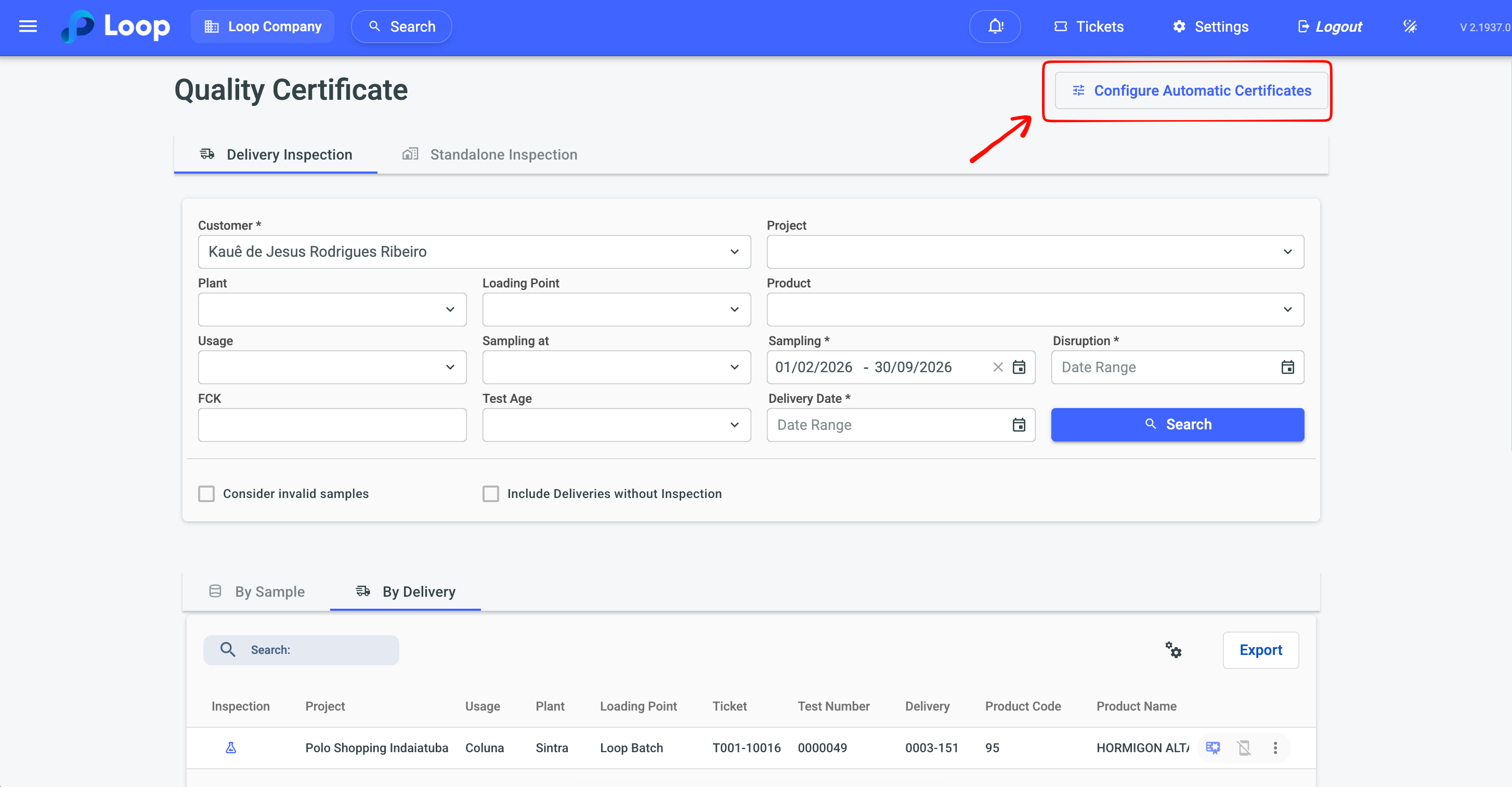
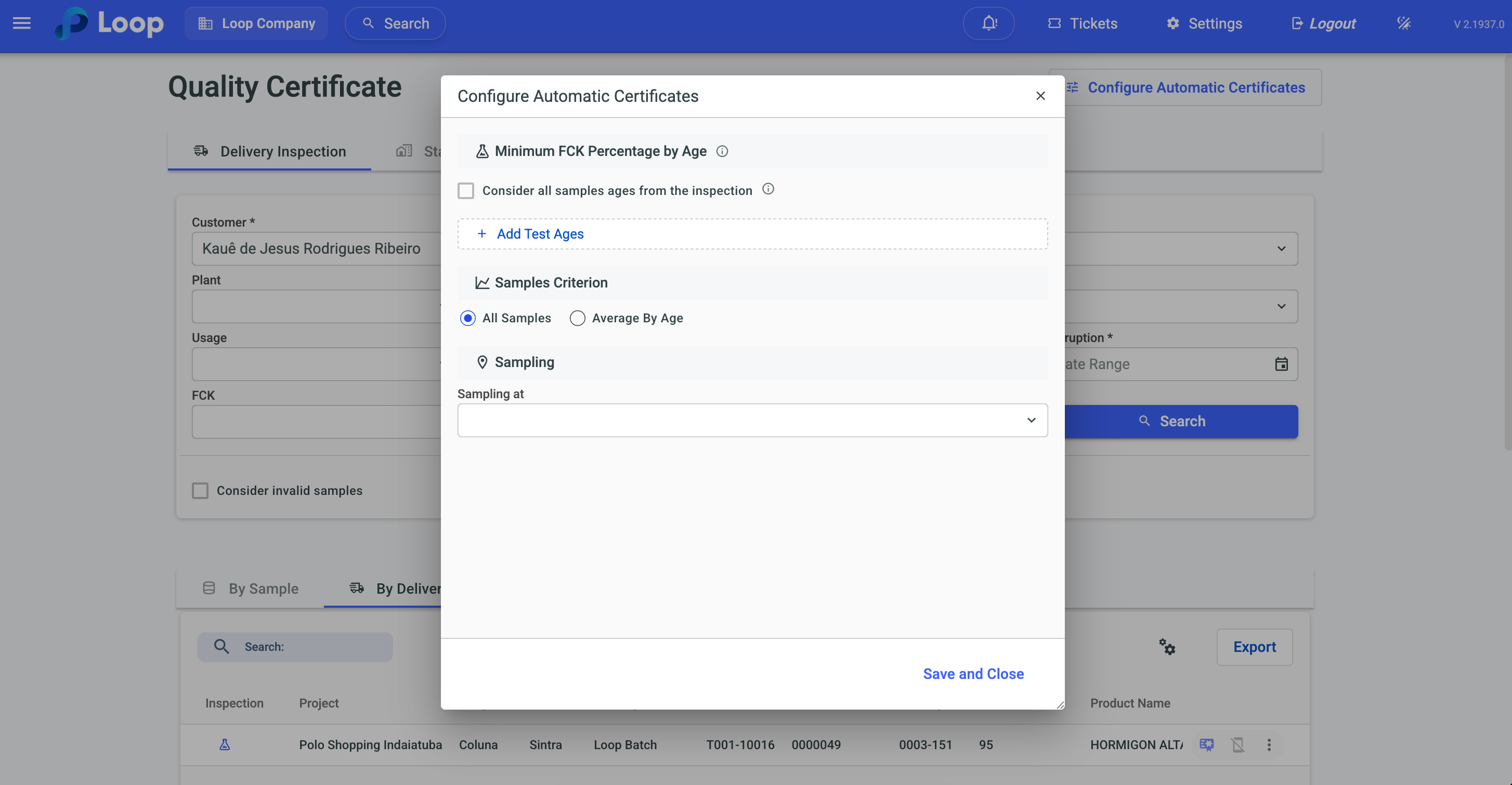
The configuration is unique per company — it is not possible to have different criteria per plant or per customer. Adjust the percentages carefully: they apply to every certificate issued from here on, including those of old deliveries not yet certified.
To learn more, go to: Automatic Certificate Configuration
When the customer asks for a consolidated report for the period instead of one per delivery, use the certificate by production history, filtered by delivery period and test age.
To learn more, go to: Certificates
¶ Complementary Resources
Besides concrete control, the module offers raw material tracking and field operation.
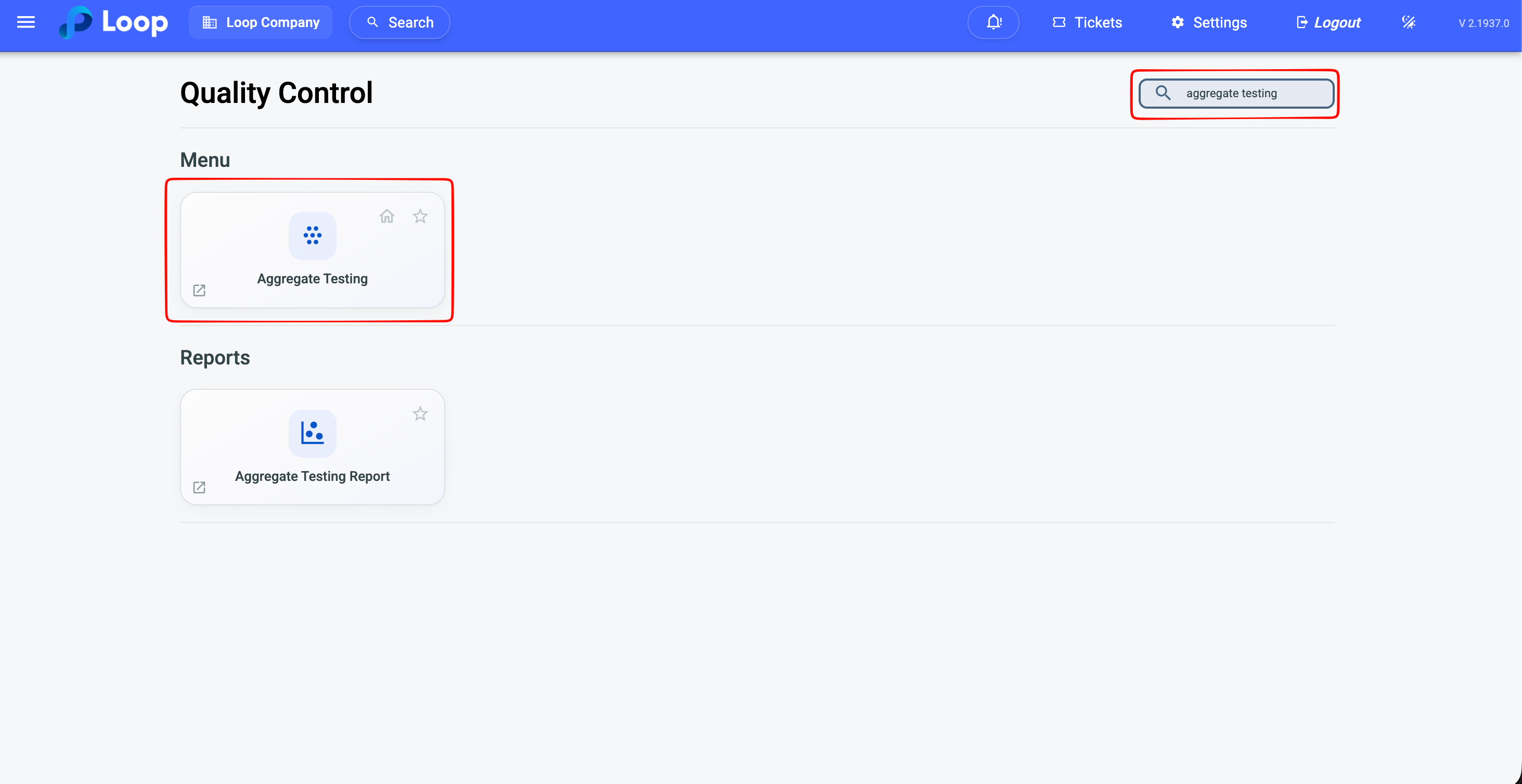
Aggregate Test
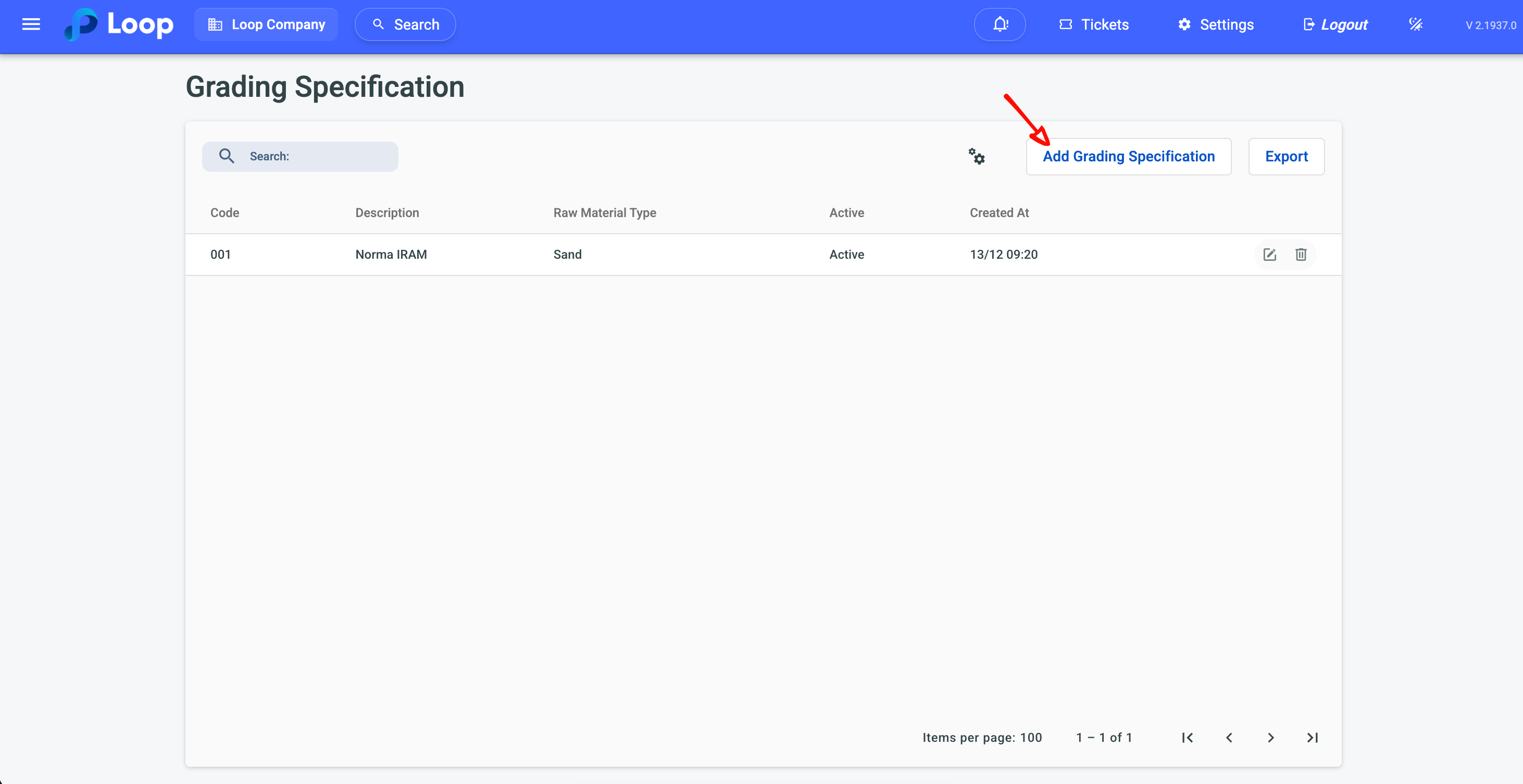
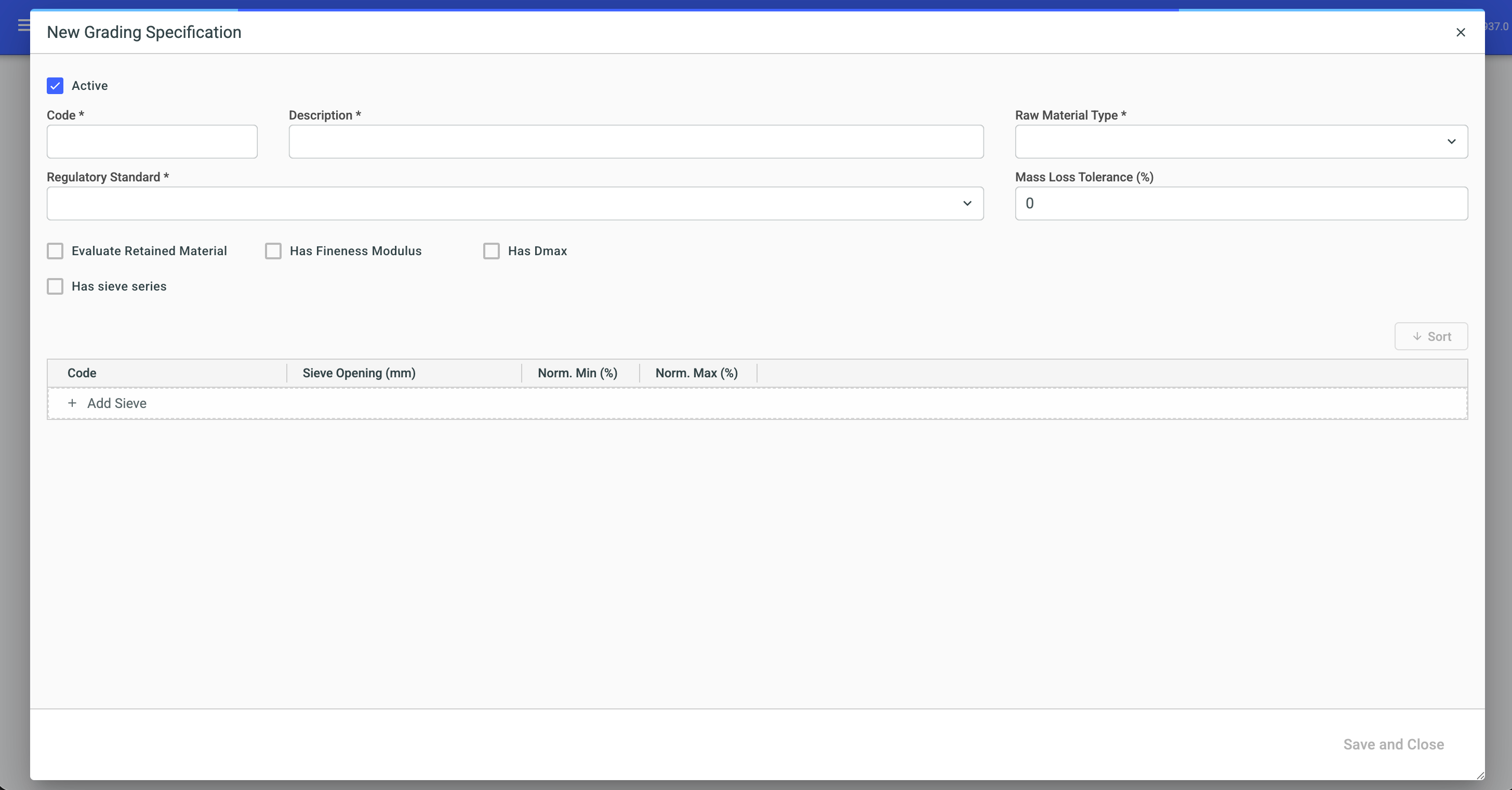
Before recording the first test, register the Gradation Standard that will serve as reference: in Administration → Gradation Standard, enter the material, the regulatory standard, the sieve series (normal or with intermediate curve) and, for each sieve, the normative passing limits — lower, upper and, where applicable, intermediate. It is also possible to define "usable" limits and the mass loss tolerance.
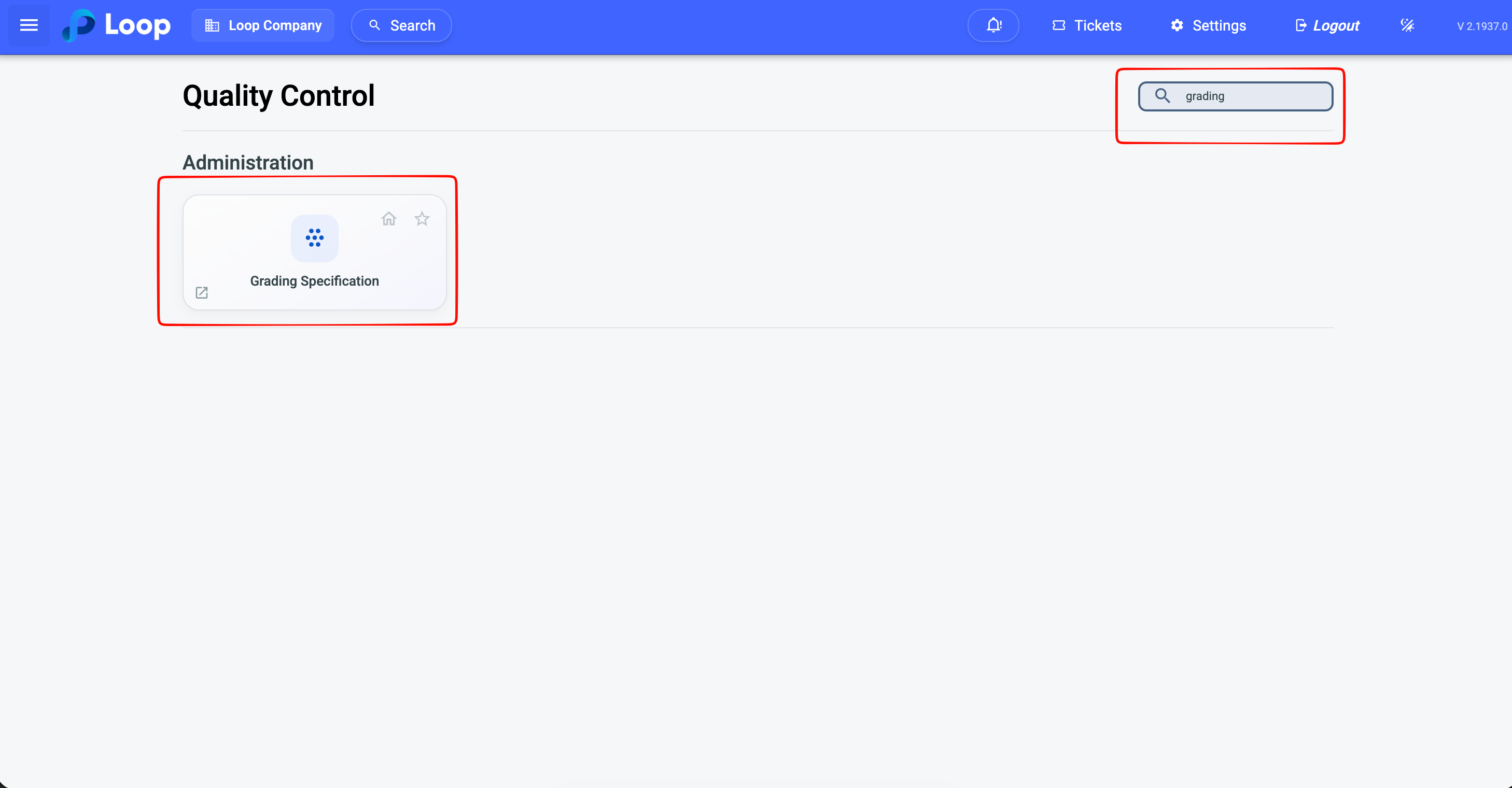
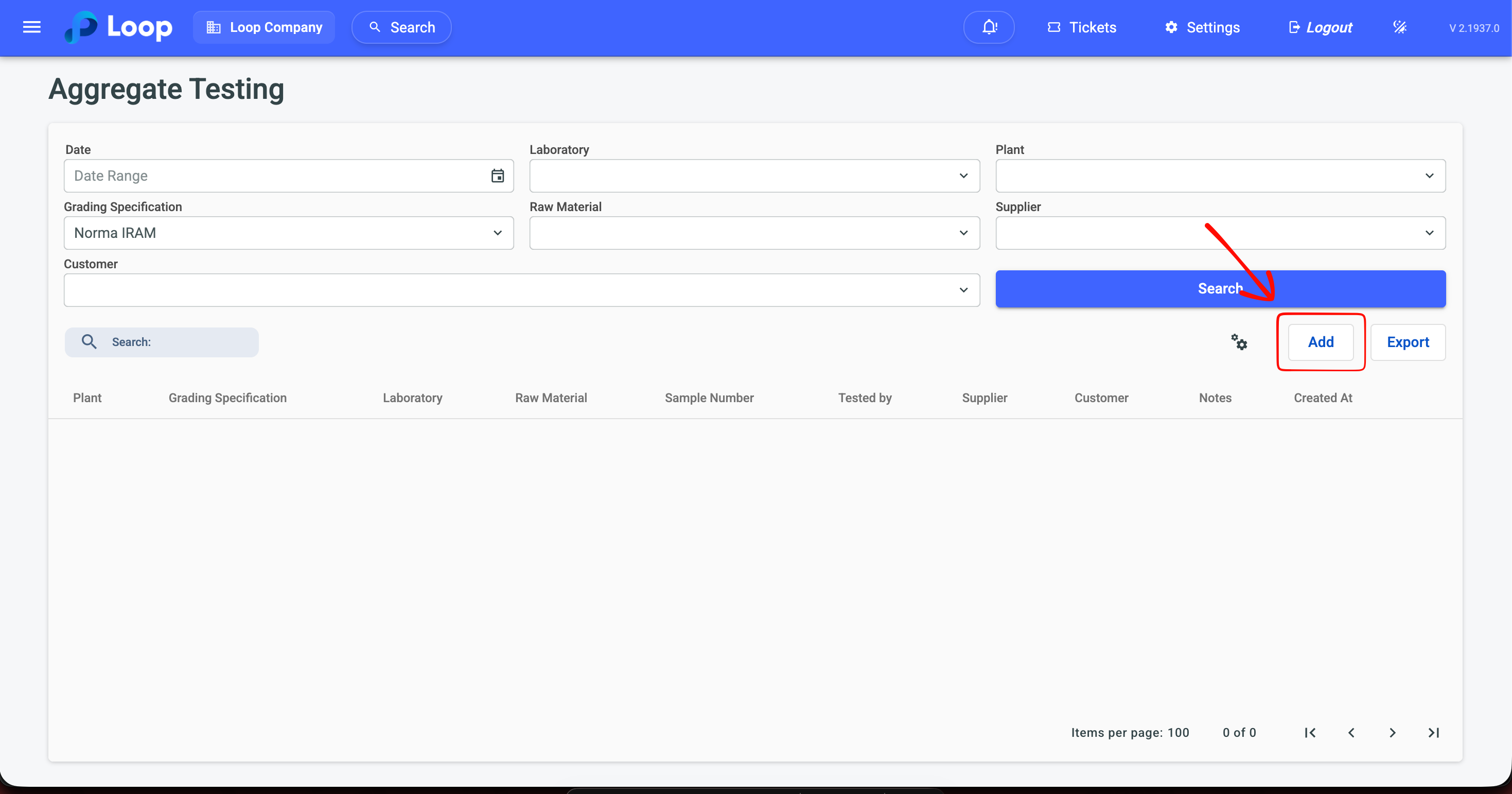
With the standard created, go to Aggregate Test and record the test: raw material, supplier, plant, laboratory and the initial and final masses. Check Enable gradation test to unlock the link with the registered standard — when you select it, the screen asks for the mass retained on each sieve and automatically calculates the passing percentage, the fineness modulus and the maximum diameter, comparing them with the standard limits. The test also records fines content, clay content, organic impurities, water absorption and specific mass.
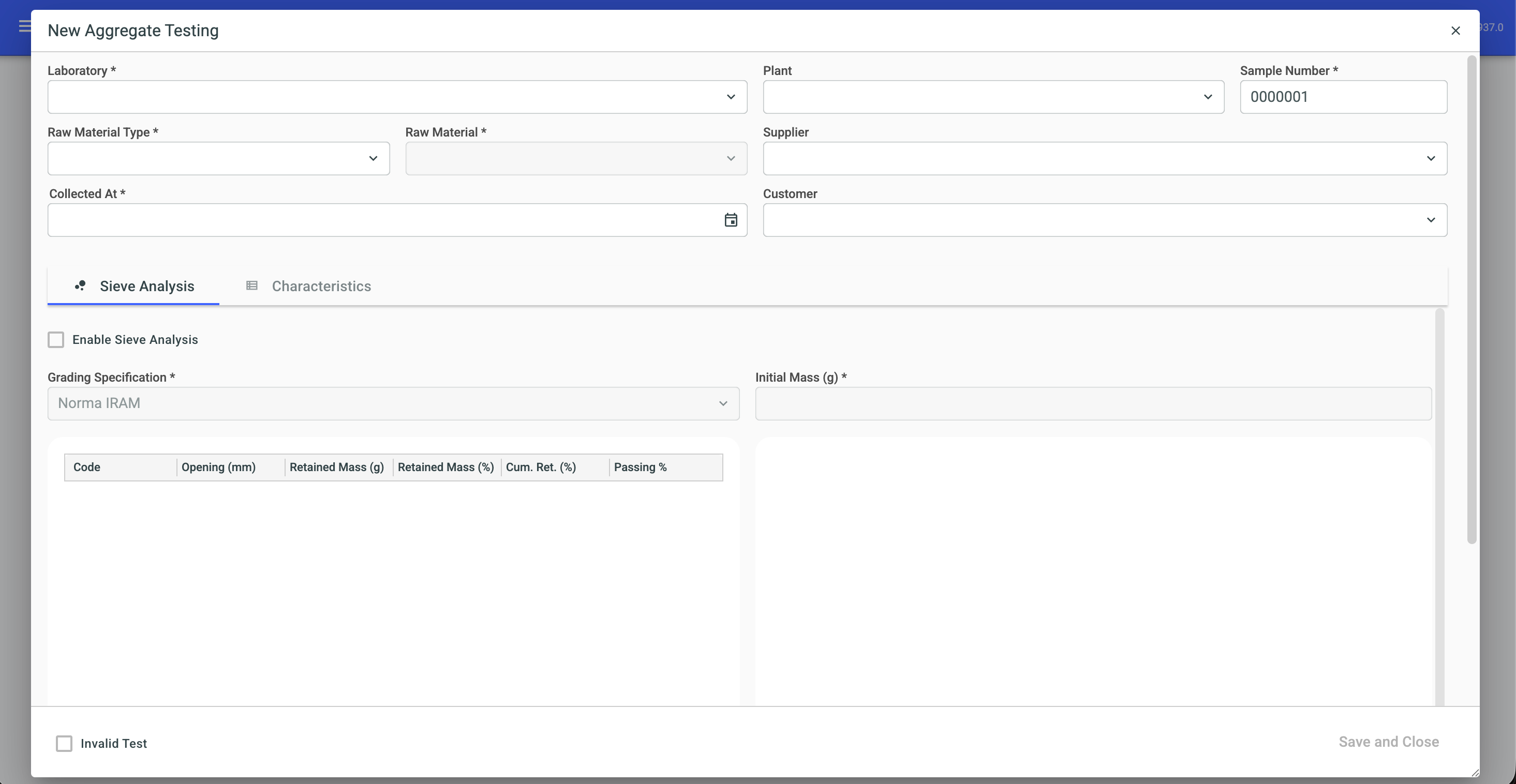
You must register the gradation standard before being able to link a test to it — with no standard registered, the gradation test has nothing to compare against.
Moisture Control
As with the aggregate test, first define the Control Limits, on the Moisture Control screen itself: by plant and test type, enter the accepted lower and upper limit.
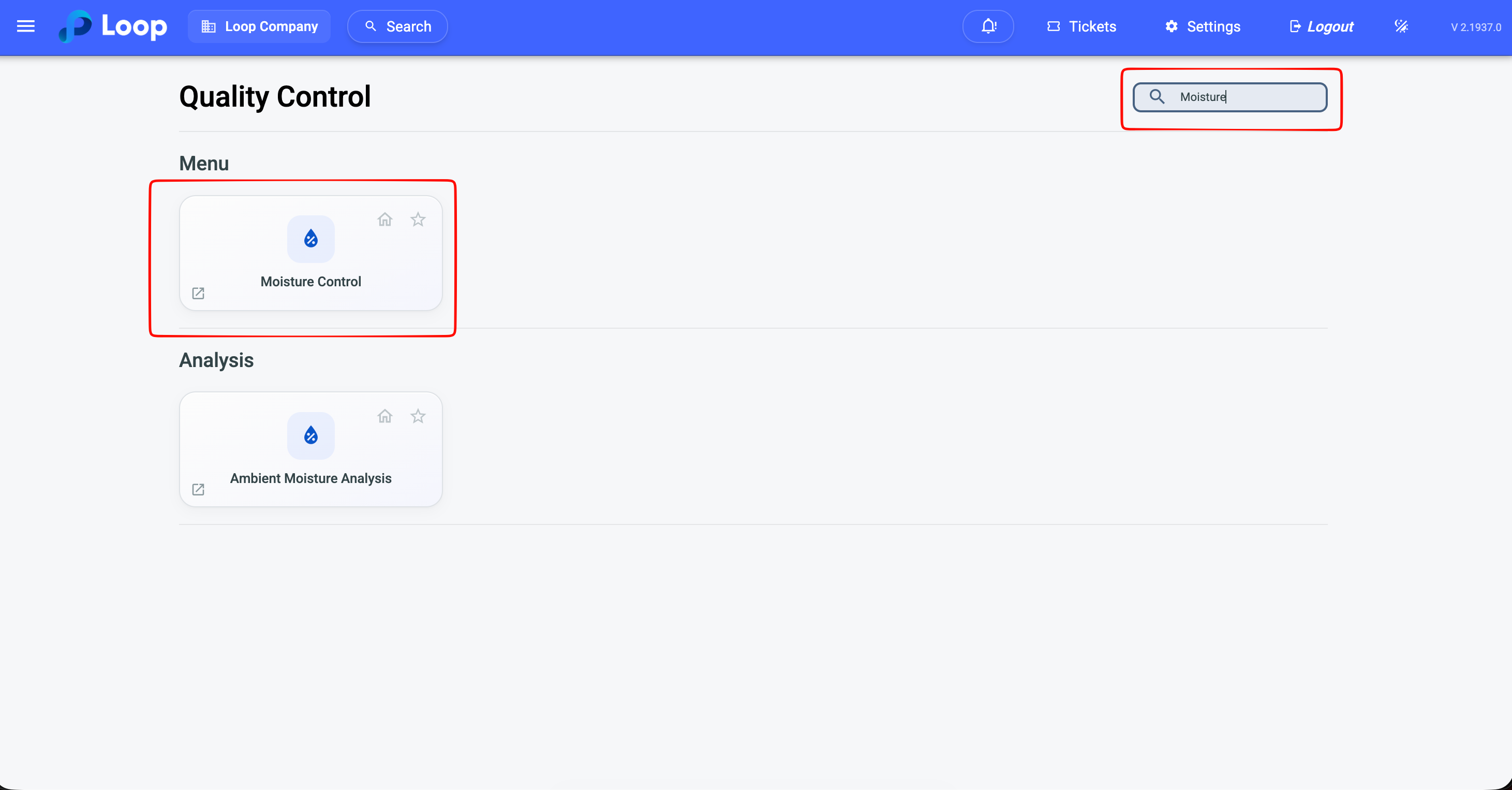
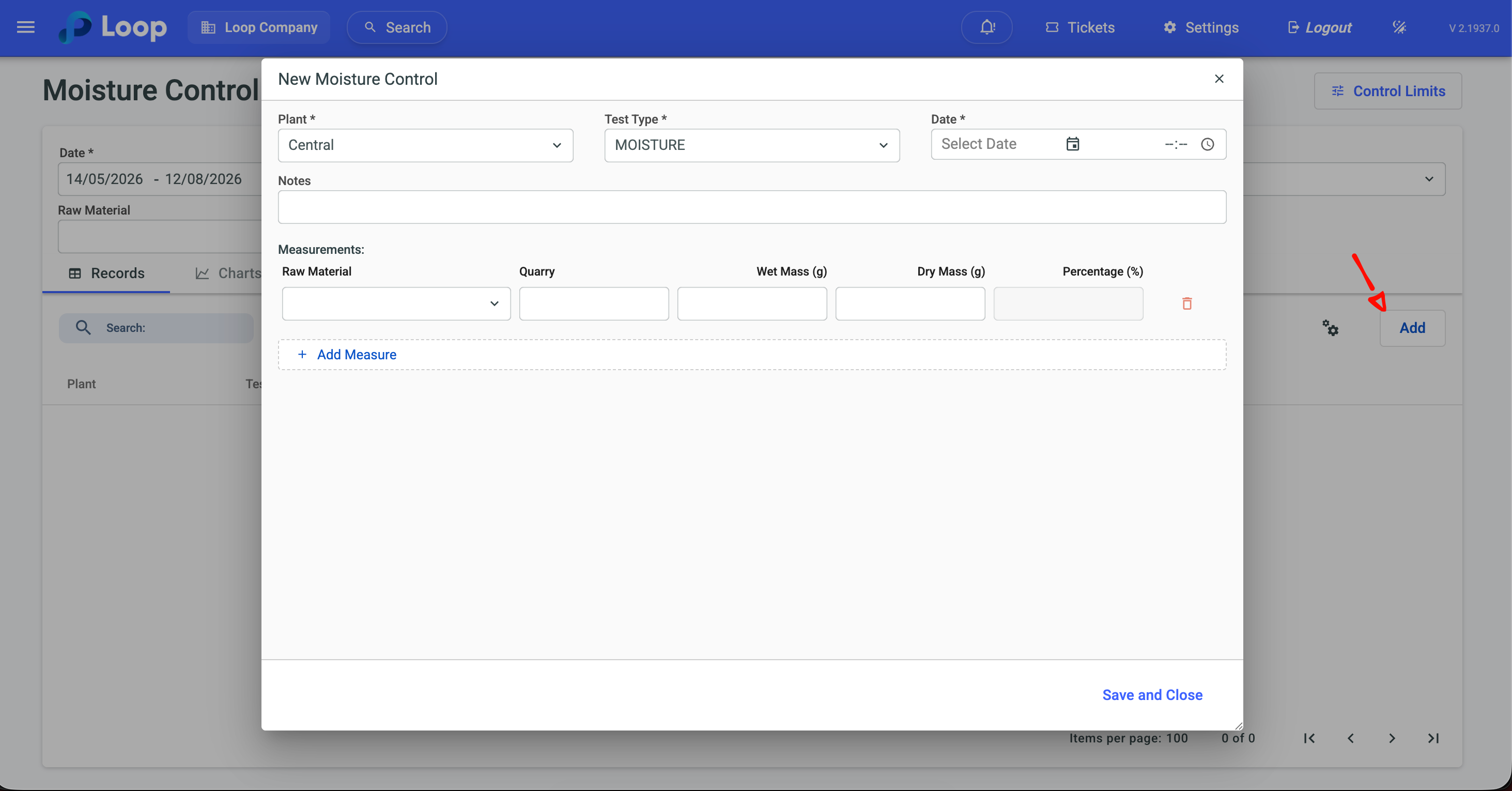
Then record the measured values on the Records tab: date, plant, raw material, quarry and test type, with the wet weight and the dry weight of the sample — the system calculates the moisture percentage automatically. The Charts tab shows the evolution of moisture over time, compared with the configured limits — useful to support the water correction in the mix design when the aggregate is out of range.
Mobile Application
Your operation also has a mobile application for use in the field and at the laboratory. For the detailed walkthrough of the app screens, see the specific application guide — this quickstart covers only Quality Control in the desktop version.
¶ Glossary
| Term | Definition |
|---|---|
| Laboratory | Physical place where samples are received and tested. |
| Sample | Concrete cylinder or block molded to evaluate compressive strength. |
| Inspection | Record of the concrete evaluation, with the fresh material measurements and the collected samples. |
| Fresh concrete inspection | Inspection that evaluates only the fresh concrete, with no specimen molding. |
| Test age | Time in days between molding and breaking the sample (usually 7 and 28 days). |
| Molding | Filling and consolidating the specimen with the collected concrete. |
| Consolidation | Compaction of the concrete in the mold, by vibration or rodding. |
| Slump | Measure of the consistency of the fresh concrete. |
| Breaking | Application of load to the sample until fracture, to measure strength. |
| Breaking load | Load recorded on the press at the moment of fracture. |
| Strength | Stress the sample withstood, calculated from the load and the area. |
| FCK | Characteristic compressive strength of the concrete. |
| Fracture type | Classification of the fracture pattern observed on the sample. |
| Conversion coefficient | Factor applied to the result, valid for samples with diameter up to 140 mm. |
| Correction factor | Adjustment of the result according to the caliper or press calibration. |
| Quality certificate | Document attesting the conformity of the delivered concrete. |
| Standalone inspection | Inspection with no link to a delivery, used in studies and one-off tests. |
Thank you for using our tutorial and we hope it has been useful to you. We are always committed to providing the necessary information and assisting you in the use of our Loop 4 ReadyMix system.